



Minor Accounts
ChorifIQ supports family members of all ages with appropriate safeguards for minors.
Age Groups
Section titled “Age Groups”| Group | Age | Notifications |
|---|---|---|
| Child | Under 13 | All notification enables are controlled by a parent in the family manager view; the child can set their preferred reminder times |
| Teen | 13–17 | Notifications and push notifications are self-managed; email digest is controlled by a parent; SMS not available |
| Adult | 18+ | Full self-managed access |
Setting Up a Minor Account (Child or Teen)
Section titled “Setting Up a Minor Account (Child or Teen)”Children and teens cannot sign up themselves. A manager (parent or guardian) must send a minor invite:
- Go to Manage → Invite → Invite Minor tab.
- Enter the minor’s email address.
- Select the minor’s age group: Teen (13–17) or Child (under 13). This determines what privacy protections and feature restrictions apply to the account.
- Check the parental consent checkbox to acknowledge the data collection notice.
- Tap Send Invite.
A confirmation email is sent to the parent’s email address (the logged-in manager’s account email, not the minor’s). The parent clicks the confirmation link to verify consent. Only then is the minor’s invitation email sent to their address.
When the minor taps the link and creates their account, the age group selected by the parent is applied automatically — the minor skips the age verification screen entirely. The invite code is pre-filled so they can only join the parent’s family.
The minor’s account then appears in the Pending Members list for manager approval, just like any other new member.
For the full step-by-step flow, see Invite a Minor.
The age group is locked once set — a minor account cannot be reclassified as adult by the account holder. A family manager can correct the age group if it was set in error; see Changing a Member’s Age Group below.
No date of birth or actual age is collected — only the confirmed group label (Child or Teen) is stored.
Restrictions on Child Accounts (Under 13)
Section titled “Restrictions on Child Accounts (Under 13)”- Notifications are parent-controlled: A family manager enables or disables each notification channel (notification, push, email) on the child’s behalf from the Manage → Family → People screen. The child can set their preferred morning and evening reminder times from their own Settings screen.
- No SMS: SMS reminders are not available for children or teens. SMS messaging is a regulated commercial campaign channel, and carrier and industry regulations prohibit including minors. Only adult (18+) accounts can enable SMS.
- No marketing email: Children never receive promotional or marketing communications.
- No subscription management: Children and teens cannot purchase or view subscriptions.
- No feedback or reviews: The Feedback option and automatic review prompts are hidden for all minors (both children and teens).
- Family-scoped only: Children can only interact with members of their own family — there’s no public directory or messaging.
Restrictions on Teen Accounts (13–17)
Section titled “Restrictions on Teen Accounts (13–17)”- Email digest is parent-controlled: A family manager enables or disables email digests on the teen’s behalf. Teens manage their own notifications and push notifications.
- No SMS: SMS reminders are not available for teens. See the note in the child restrictions section above.
- No subscription management: Teens cannot purchase or view subscriptions.
- No feedback or reviews: The Feedback option and automatic review prompts are hidden. See the note in the child restrictions section above.
Changing a Member’s Age Group
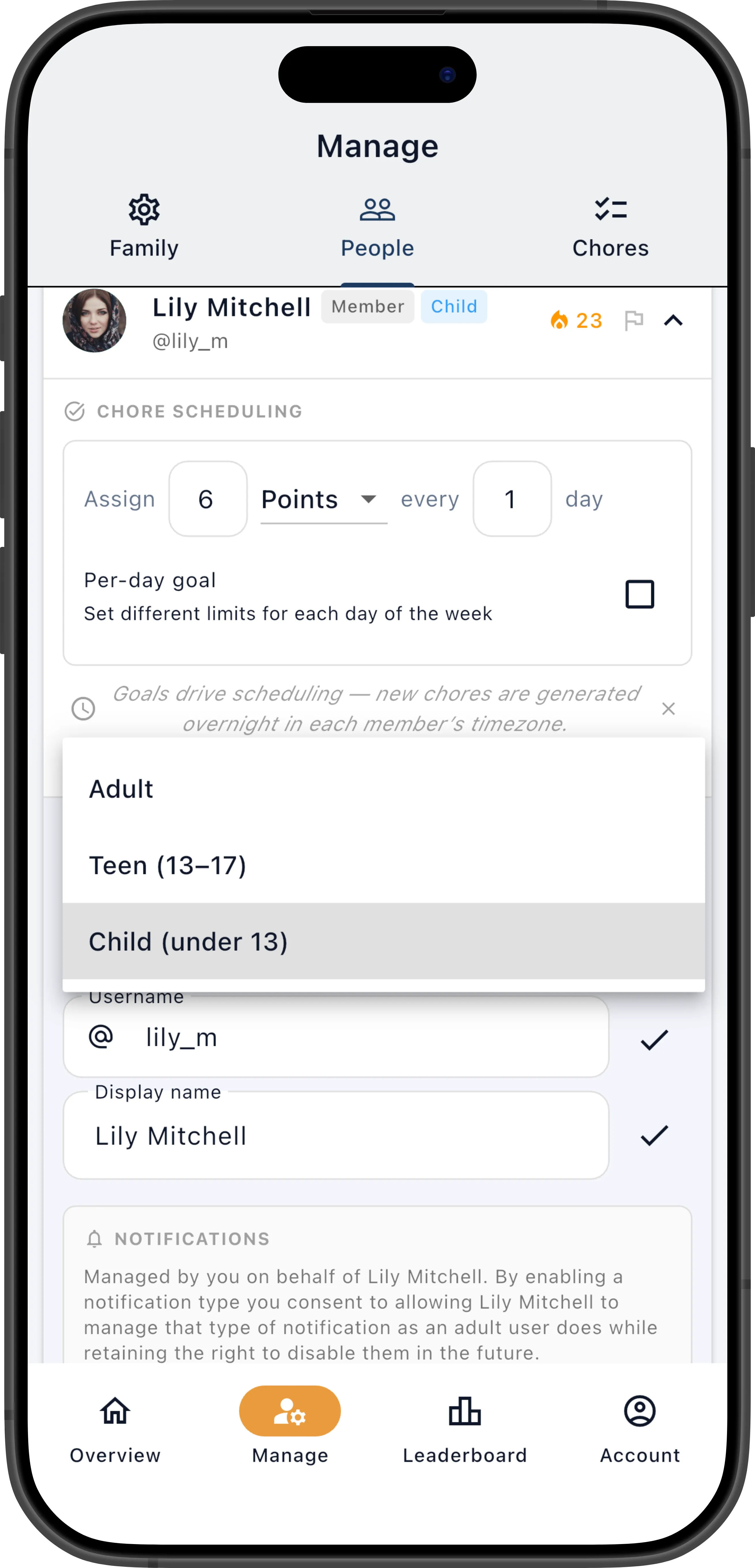
Section titled “Changing a Member’s Age Group”A family manager can change the age group of any family member. This is intended to correct genuine errors (e.g., the platform Age Signals estimate was wrong at signup) or to reflect a parent or guardian’s explicit consent to treat their child or teen as a different age group.
To change a member’s age group:
- Go to Manage → People.
- Expand the member’s row.
- Tap Change Age Group.
- Select the correct age group.
- Confirm the change.
Removing a Minor’s Account
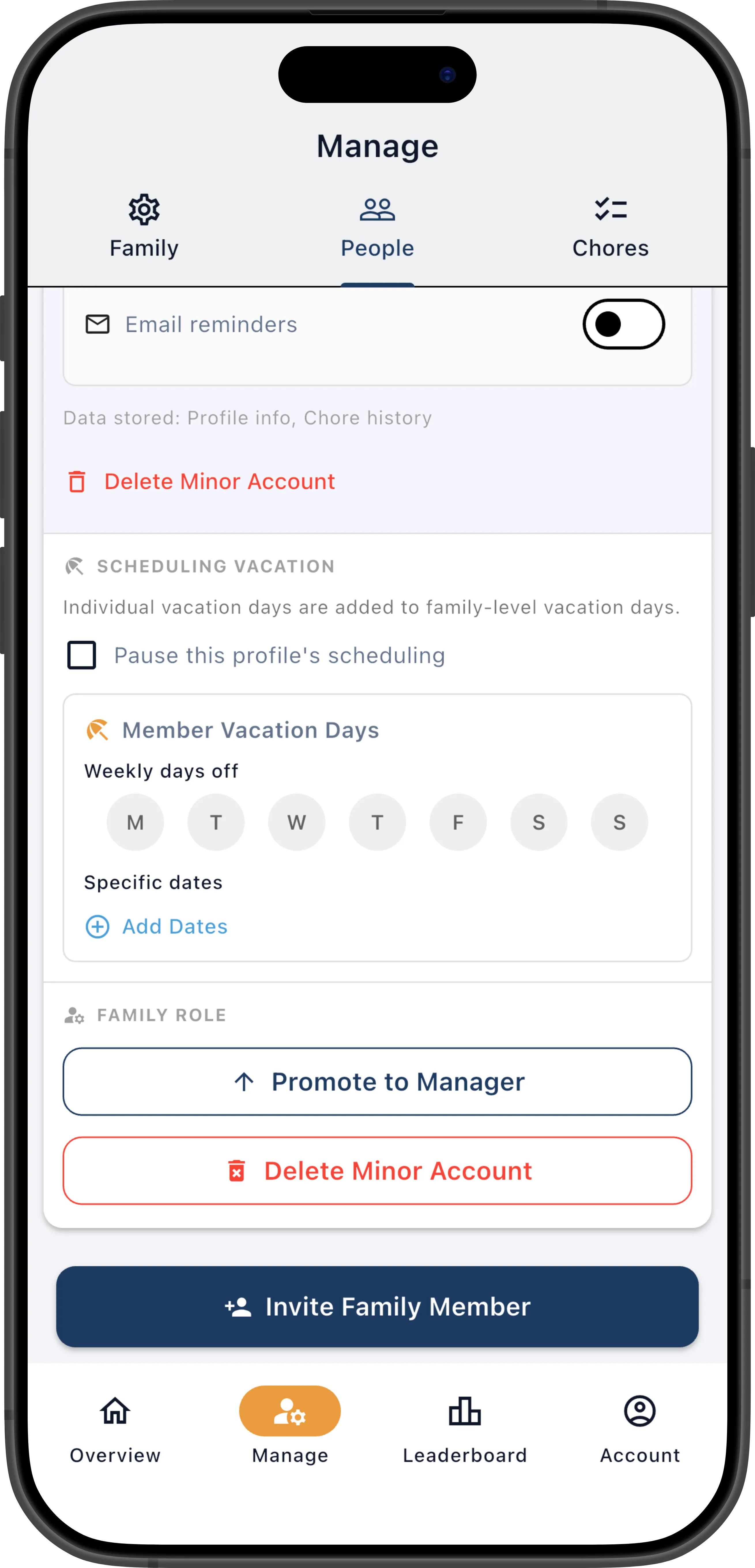
Section titled “Removing a Minor’s Account”Minor accounts are tied to the family they were invited to and cannot be transferred to another family. Because of this, removing a minor from the family permanently deletes their account, all chore history, and revokes the associated parental consent.
To delete a minor’s account, a family manager taps Delete Minor Account on the member’s card in Manage → People. See Delete a Minor’s Account for the full steps.
If a parent needs to update the parental consent on file or has questions, contact ChorifIQ support via the Account screen.