



Bulk Import
Bulk Import lets you add many chores at once by uploading a spreadsheet. This is the fastest way to set up ChorifIQ for a large household or to migrate chores from another system.
Download the Template
Section titled “Download the Template”Start with the official template to make sure your data is formatted correctly.
- Navigate to Chores and tap the import icon (or find the Bulk Import option in the menu).
- Tap Download Template.
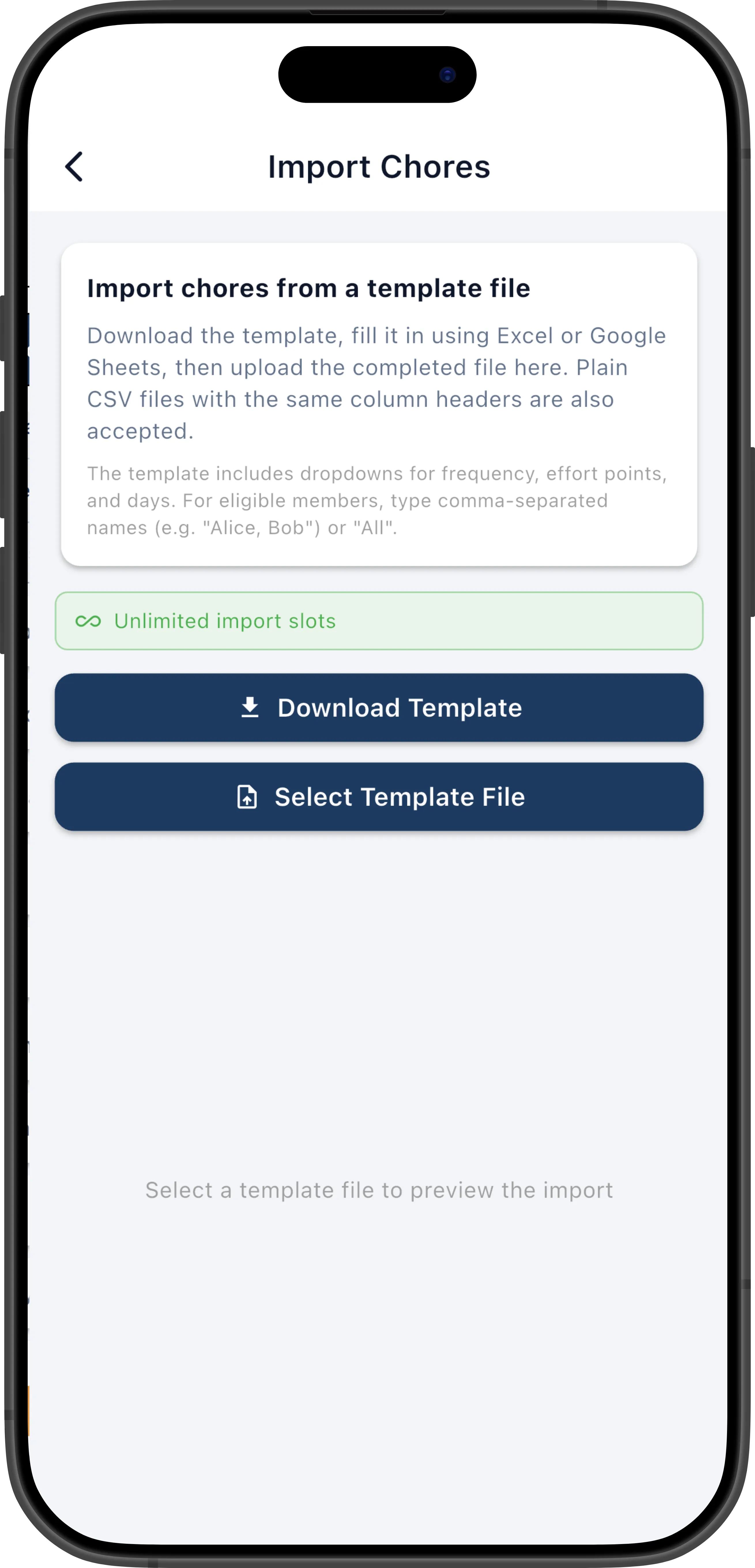
- Open the downloaded file in Excel, Numbers, or Google Sheets.
Fill In the Template
Section titled “Fill In the Template”The template has one row per chore. Fill in the columns:
| Column | Required | Description |
|---|---|---|
| Name | Yes | The chore name |
| Description | No | Optional extra detail |
| Effort Points | Yes | A number (0–10) |
| Frequency | Yes | daily, weekly, monthly, or yearly |
| Interval | No | How often within the frequency (e.g., 2 for every 2 weeks) |
| Days of Week | No | Comma-separated days (e.g., Mon,Wed,Fri) |
| Eligible Members | No | Comma-separated member names (empty = all members) |
| Duration (days) | No | Days from assignment to complete (0–30, 0 = no limit) |
| Days | No | Number of days (used for ad-hoc scheduling) |
| Self-Assign | No | Yes or No |
| Multiple Assignments | No | Yes or No |
| Early Rescheduling | No | Yes or No |
| Strict Rotation | No | Yes or No |
| Enforce Self-Assign Rules | No | Yes or No |
| Auto-Expire Days | No | Number of days past due before auto-expiring (0–30, empty = disabled). 0 = immediate, 1 = 1-day grace period, etc. |
Leave optional columns blank if they don’t apply.
Upload and Import
Section titled “Upload and Import”- Save your completed spreadsheet as
.xlsxor.csv. - On the Bulk Import screen, tap Choose File and select your file.
- ChorifIQ parses the file and shows a preview with the number of valid and invalid rows.
- Review any errors shown for invalid rows. Fix them in your spreadsheet and re-upload if needed.
- Tap Import to add all valid chores.
After Importing
Section titled “After Importing”Imported chores appear in your Definitions list. Each can be edited individually after import — adjust schedules, assign eligible members, or change effort points as needed.