



Goals & Points
Goals give family members a target to work toward. ChorifIQ supports two goal types: effort points and chore count. Managers set goals per member; members can see their progress on their dashboard.
Goal Types
Section titled “Goal Types”| Type | How it works |
|---|---|
| Points | The member earns points based on the effort value of completed chores. A 3-point chore contributes 3 toward the goal; a 7-point chore contributes 7. |
| Chores | The member earns one credit for each chore completed, regardless of effort. A quick wipe-down counts the same as a deep clean. |
Choose Points when your chores have meaningfully different effort levels. A family with “Wipe the counter” (2 pts) and “Mow the lawn” (8 pts) benefits from points — a member who tackles the lawn shouldn’t have to do as many additional chores as someone who wiped a counter. Points reward harder work proportionally.
Choose Chores when most of your chores are roughly equal in effort, or when you want simplicity. If your family assigns tasks like “Make your bed,” “Feed the cat,” and “Set the table” — all quick, similar-effort jobs — a chores goal of “3 per day” is straightforward and easy for younger kids to understand.
Setting a Goal
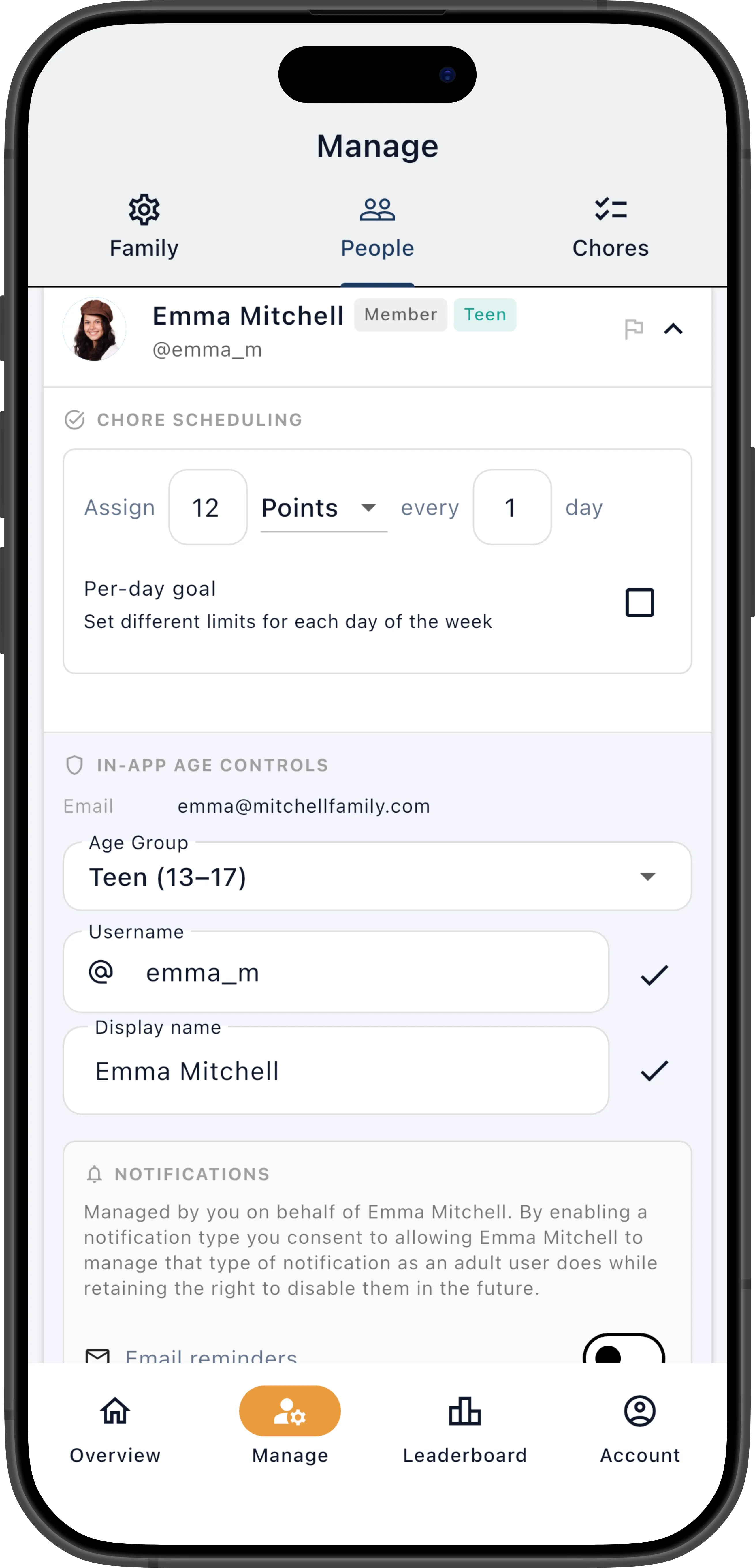
Section titled “Setting a Goal”- Go to Manage → People and expand a member’s row.
- Set the Goal Type to Points or Chores.
- Enter the Goal Value — the target to reach (e.g., 20 points or 5 chores).
- Set the Interval Days — the period over which the goal resets (e.g.,
1= daily,7= weekly). - Tap the save checkmark.
How Goals Affect Scheduling
Section titled “How Goals Affect Scheduling”When ChorifIQ assigns chores, it respects each member’s goal capacity. If a member’s assigned chores already total at or above their goal for the current interval, the scheduler won’t pile on additional assignments. This prevents members from being overwhelmed — a child with a 10-point daily goal won’t wake up to 30 points of chores.
Goals also gate self-assign: when a member opens their self-assign list, they’ll only see chores they have remaining capacity for. If their goal is 10 points and they’ve earned 8, only chores worth 2 or fewer points will appear.
The scheduler treats goals as a guideline, not a hard ceiling. Managers can always override by using Quick Assign to manually assign chores beyond a member’s goal — the system warns you but doesn’t block it.
Goals don’t exist in isolation — they work alongside other scheduling features to form a complete picture of each member’s availability. Vacation days exclude days from scheduling entirely. Per-day goals adjust capacity day by day to reflect a member’s real-world schedule. Strict rotation may defer a chore if the next-in-line member doesn’t have capacity, rather than assigning it unfairly. The scheduler considers all of these together when deciding what to assign and to whom each day.
Per-Day Goal Breakdown
Section titled “Per-Day Goal Breakdown”Not every day is the same — school days, practice nights, and weekends all have different amounts of free time. Per-day goals let managers set a different point (or chore) target for each day of the week, giving granular control over how much work ChorifIQ assigns to each member on any given day.
- Go to Manage → People and expand a member’s row.
- In the goal settings area, check the Per-day goal toggle.
- A bottom sheet appears with a slider for each day of the week (Monday–Sunday). Drag each slider to set that day’s target. A value of 0 means no chores will be assigned on that day.
- Tap Save to apply.
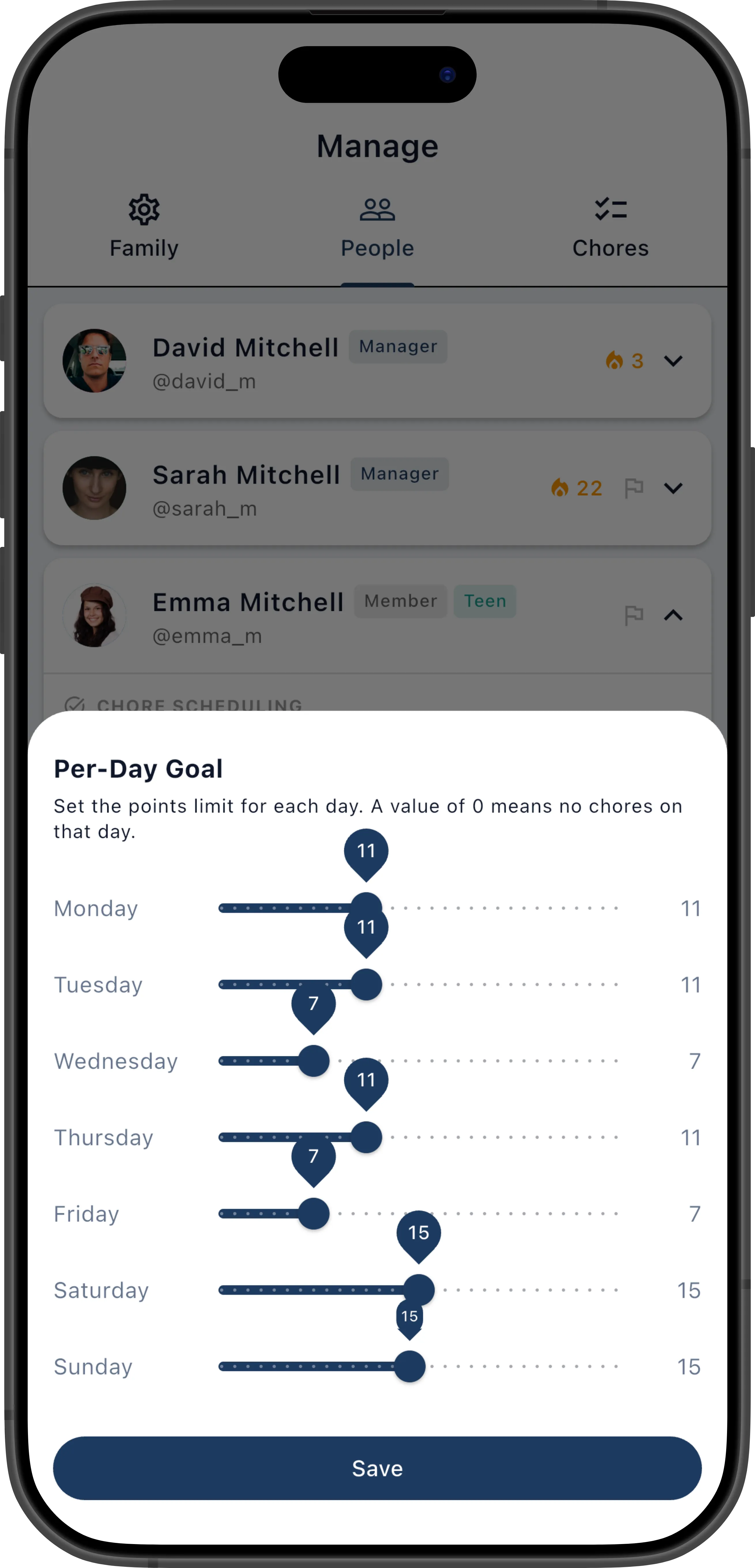
When per-day goals are active, ChorifIQ uses each day’s individual limit instead of the flat goal value when deciding how many chores to schedule and whether a member has capacity for additional assignments.
Example: A teenager has after-school activities on Tuesdays and Thursdays, so you set those days to 4 points. On Saturdays when they’re home all day, you set it to 12 points. Other weekdays get 7 points. This way, the scheduler automatically assigns fewer chores on busy days and more on open days — without you having to manually adjust anything each week.
Another common pattern: set Sunday to 0 to give a member a full day off without needing to configure vacation days.
Disabling the per-day toggle averages all seven values back into a single flat goal.
Overriding Points on Individual Assignments
Section titled “Overriding Points on Individual Assignments”Effort points are set on the chore definition, but you can override the point value for a specific assignment. This is useful for:
- Bonus points — A member went above and beyond on a chore (cleaned the entire kitchen instead of just the dishes). Bump the points to reward the extra effort.
- Reduced points — A chore was only partially completed (they vacuumed the living room but skipped the hallway). Lower the points to reflect what was actually done.
- Manual corrections — The definition’s effort level was set too high or low for this particular instance.
See Assignment Actions for how to set a points override. When overridden, the original point value is shown in grey next to the new value so you can always see what the default was. Tap the X to clear the override and revert to the definition’s default. Overridden values are used in goal progress calculations and leaderboard rankings.
Goal Progress on the Dashboard
Section titled “Goal Progress on the Dashboard”Members see their goal progress displayed as a progress indicator on their dashboard — for example, “8 / 10 points today” or “2 / 5 chores this week.” The indicator fills as they complete chores throughout the day.
Managers can see each member’s goal progress on the People tab and in the Quick Assign sheet, making it easy to see at a glance who still has capacity and who is close to their target.