



Joining a Family
If someone else has already set up a ChorifIQ family and has invited you to join, you’ll need their invite code or a QR code to get in. Joining a family makes you a member — you’ll see your assigned chores, track your progress, and compete on the family leaderboard.
Get the Invite Code
Section titled “Get the Invite Code”Ask your family manager to share the invite code. They can find it in the app under Manage → Invite (the share icon at the top of the People tab). The code is a short alphanumeric string like A1B-2C3D-E4B.
The manager has several ways to share it:
- Copy the code to the clipboard and paste it into a text message
- Share Code to send it via Messages, email, or any sharing app
- Share QR scan the QR code to open the pre-installed app on another device
Join via Invite Code
Section titled “Join via Invite Code”If you already have the code, enter it during account creation on the Complete Your Profile screen.
- On the Complete Your Profile screen, expand the Join a Family card.
- Enter the invite code — it’s automatically formatted as you type (e.g.,
ABC-123-XYZ). - Fill in the rest of your profile details and accept the Terms of Service and Privacy Policy.
- Tap Complete Profile.
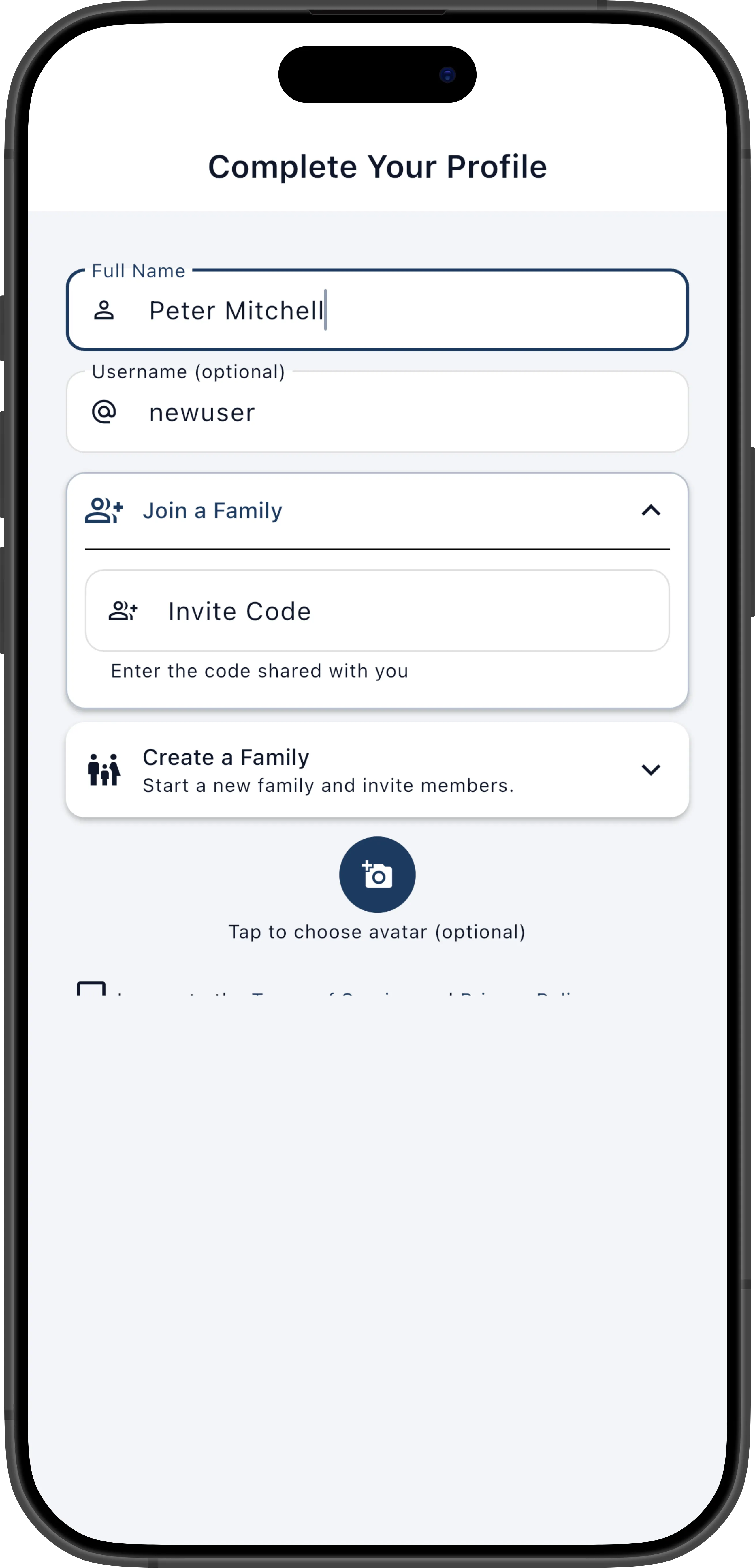
If the code is invalid or expired, the app shows an error — double-check with your manager or ask them to share it again.
Join via QR Code
Section titled “Join via QR Code”If you’re in the same room as your manager, scanning the QR code is the easiest option. The manager opens the invite screen and shows the QR code on their device. You’ll want to install ChorifIQ before scanning the QR code. You scan it with your phone’s camera, which opens ChorifIQ with the invite code pre-filled. Complete the profile as described above.
Waiting for Approval
Section titled “Waiting for Approval”After submitting the invite code, your request is sent to the family manager for approval. You’ll see a Pending Approval screen while you wait.
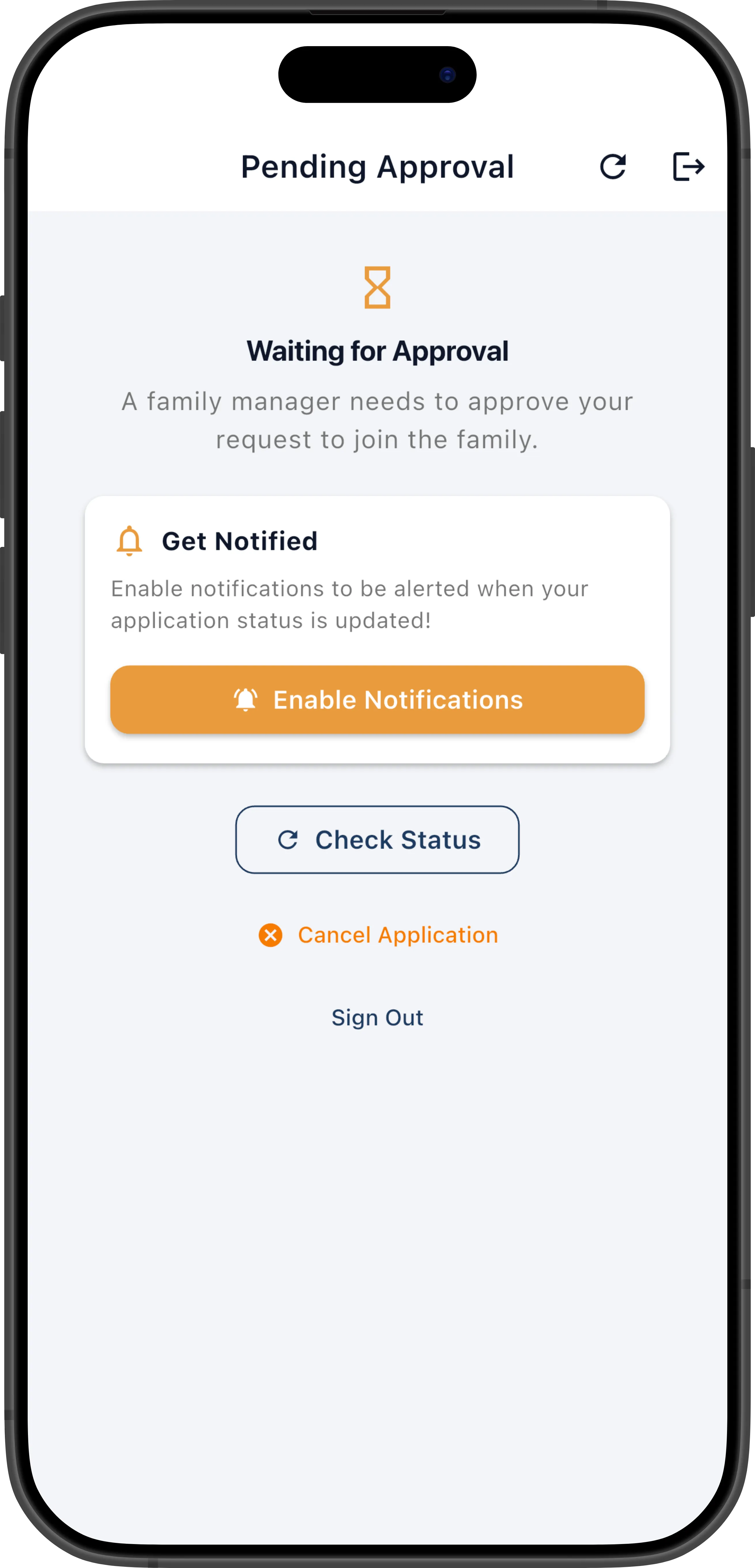
The Pending Approval screen has a toggle to enable notifications — turn this on so you get a notification the moment a manager approves your request. Due to COPPA regulations, children will not be able to receive ‘push’ notifications. Push notifications aren’t required, the app automatically checks for updates or you can pull to refresh.
Once a manager approves you, the app automatically transitions to your member dashboard, showing today’s assigned chores. If no chores have been assigned yet, you’ll see an empty dashboard — your manager will start assigning chores soon, or you can self-assign chores if the manager has enabled that option.
Joined via a Minor Invite Link?
Section titled “Joined via a Minor Invite Link?”If a parent or manager sent you an email invite for a minor’s account (teen or child), tap the link in the email. It opens ChorifIQ directly with the invite code pre-filled and guides you through account creation. See Minor Accounts for details on how minor accounts work.