



Family Settings
Family settings apply to everyone in the family and are only accessible to managers. Find them under Manage → Settings (the Settings tab within the Manage section).
Managers also have additional personal settings on the Account → Settings screen — see Manager Account Settings below.
Allow Family Join Requests
Section titled “Allow Family Join Requests”Allow family join requests controls whether new people can apply to join the family using an invite code. It is on by default for all new families.
| State | Effect |
|---|---|
| On | The family has an active invite code. Anyone with the code or link can apply. New applicants appear in the Pending Members list for approval. |
| Off | The invite code is removed. No one can join the family — the Invite Members sheet shows a message directing the manager to re-enable the setting. |
Turning join requests off
Section titled “Turning join requests off”- Go to Manage → Family Settings.
- Toggle Allow family join requests off.
The family’s invite code is immediately removed. Any previously shared codes or links become permanently invalid — there is no way to reactivate an old code. Existing members and pending applicants are unaffected.
Turning join requests back on
Section titled “Turning join requests back on”- Go to Manage → Family Settings.
- Toggle Allow family join requests on.
A brand-new invite code is generated. Share it from the Invite Members screen as usual.
Overdue Chore Handling
Section titled “Overdue Chore Handling”Expire uncompleted chores after due date — When enabled, chore assignments that were not completed by their due date are automatically marked as expired. Expired chores move to the resolved section and break the assigned member’s streak. When disabled, overdue chores remain visible as pending until completed, excused, or manually expired by a manager.
This is a family-wide default. If you want different behavior for specific chores, use the per-chore Auto-expire when overdue setting on the chore definition — it takes precedence over this family-level setting. For example, you might leave this family setting off but enable auto-expire specifically on time-sensitive chores like “Set the dinner table” (which makes no sense to complete the next day).
See Managing Chores — Expiring Chores for more on how expiration works and its impact on streaks.
Vacation Days of the Week
Section titled “Vacation Days of the Week”Set recurring days of the week where no chores are assigned to any member. This is a family-wide rest day — everyone gets the day off.
- Tap Vacation Days of Week.
- Select the days you want to mark as vacation (e.g., Saturday and Sunday).
- Changes are saved automatically.
On these days, the dashboard shows a vacation banner and no new assignments are generated. Vacation days never break a member’s streak — they’re simply skipped in the streak calculation.
Most families set at least one day off per week. If you want different rest days for different members (e.g., one child has Saturdays off for sports, another has Wednesdays off for lessons), use individual member vacation days instead — see Vacation.
Weekly Family Report
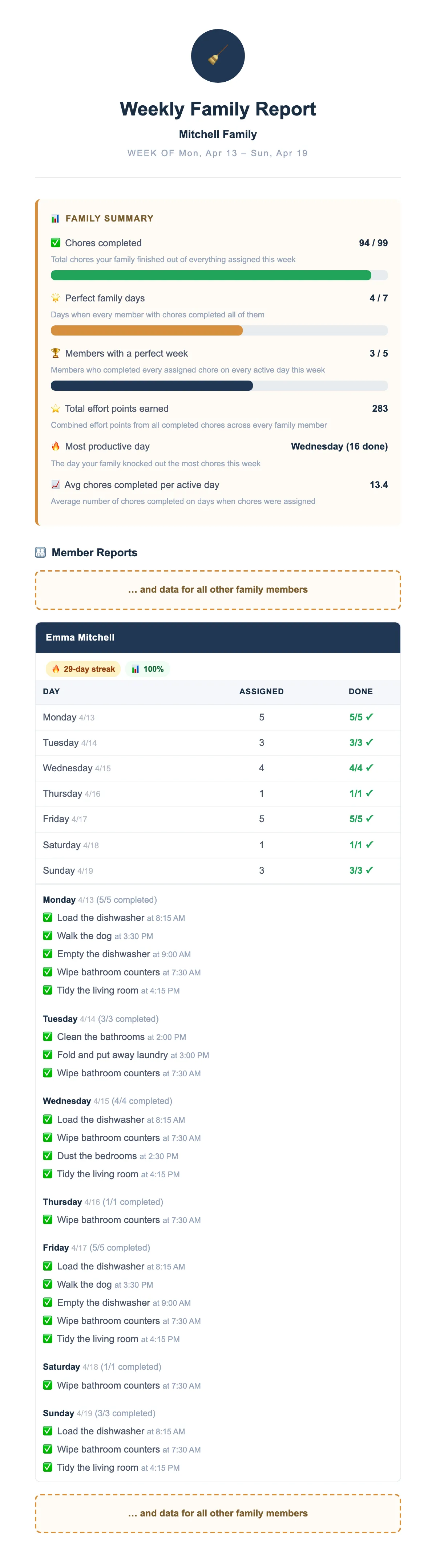
Section titled “Weekly Family Report”ChorifIQ can email a weekly summary of your family’s chore completion to the manager.
- Under Weekly Report, select the day of the week to receive the report (e.g., Sunday).
- To disable the report, select None.
The report includes completion rates, points earned, and streak data for all family members.
Manager Daily Summary Email
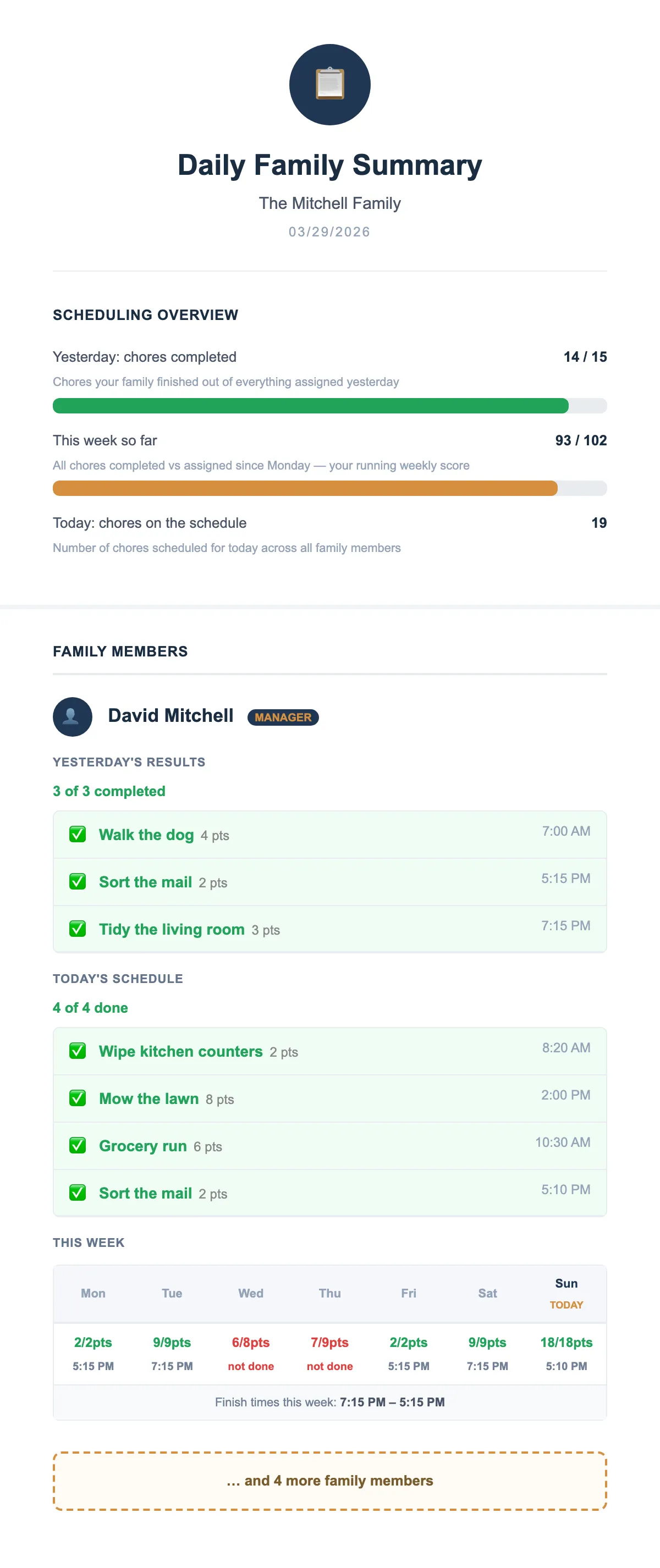
Section titled “Manager Daily Summary Email”Managers on a Pro or Max subscription can receive a daily email summarizing all family members’ chore completion for the day.
- Go to Settings.
- Toggle Manager Daily Summary on.
- Set your preferred send time.
The summary includes each member’s completed, incomplete, excused, and expired chores for the day.
Leaderboard Ranking
Section titled “Leaderboard Ranking”Choose whether the family leaderboard ranks members by chore count (number of chores completed) or effort points (total points earned from completed chores).
- Go to Family Settings.
- Find Leaderboard ranking.
- Select Chore count or Effort points from the dropdown.
This setting controls the “official” weekly ranking used for:
- Leaderboard drop notifications (push alerts when someone passes you)
- Leaderboard standings in email digests and the weekly family report
- The default metric shown when members open the Most tab
Members can still toggle between chores and points on the leaderboard screen to see both views, but notifications and reports always use the family’s chosen metric.
Changing the leaderboard metric takes effect immediately. Members who are currently viewing the Most tab will see the default metric update on their next visit. Historical rankings in the leaderboard_positions table are also recalculated based on the new metric the next time a chore is completed.
Exclude Managers from Leaderboard
Section titled “Exclude Managers from Leaderboard”Managers can remove themselves from the family leaderboard so that only members are ranked.
- Go to Family Settings.
- Toggle Exclude managers from leaderboard on.
When enabled:
- Managers no longer appear on the leaderboard or receive leaderboard drop notifications
- Member rankings are recalculated without managers, so positions aren’t inflated by a non-participating manager at the bottom
- Email digests and the weekly family report also exclude managers from leaderboard standings
- Managers still see the leaderboard screen and can view member rankings — a banner reminds them they’re excluded
Toggle it off at any time to rejoin the leaderboard.
Family Deletion
Section titled “Family Deletion”A family is automatically deleted when its last member leaves — either by removing themselves or by deleting their account. There is no separate “delete family” action; the family is cleaned up once no members remain.
If you want to dissolve a family, remove all other members first (see Managing Members), then leave or delete your own account.
Manager Account Settings
Section titled “Manager Account Settings”In addition to the family-wide settings above, managers see extra sections on the Account → Settings screen. Open it by tapping the account icon (or hamburger menu) then Settings.
Manager Notifications
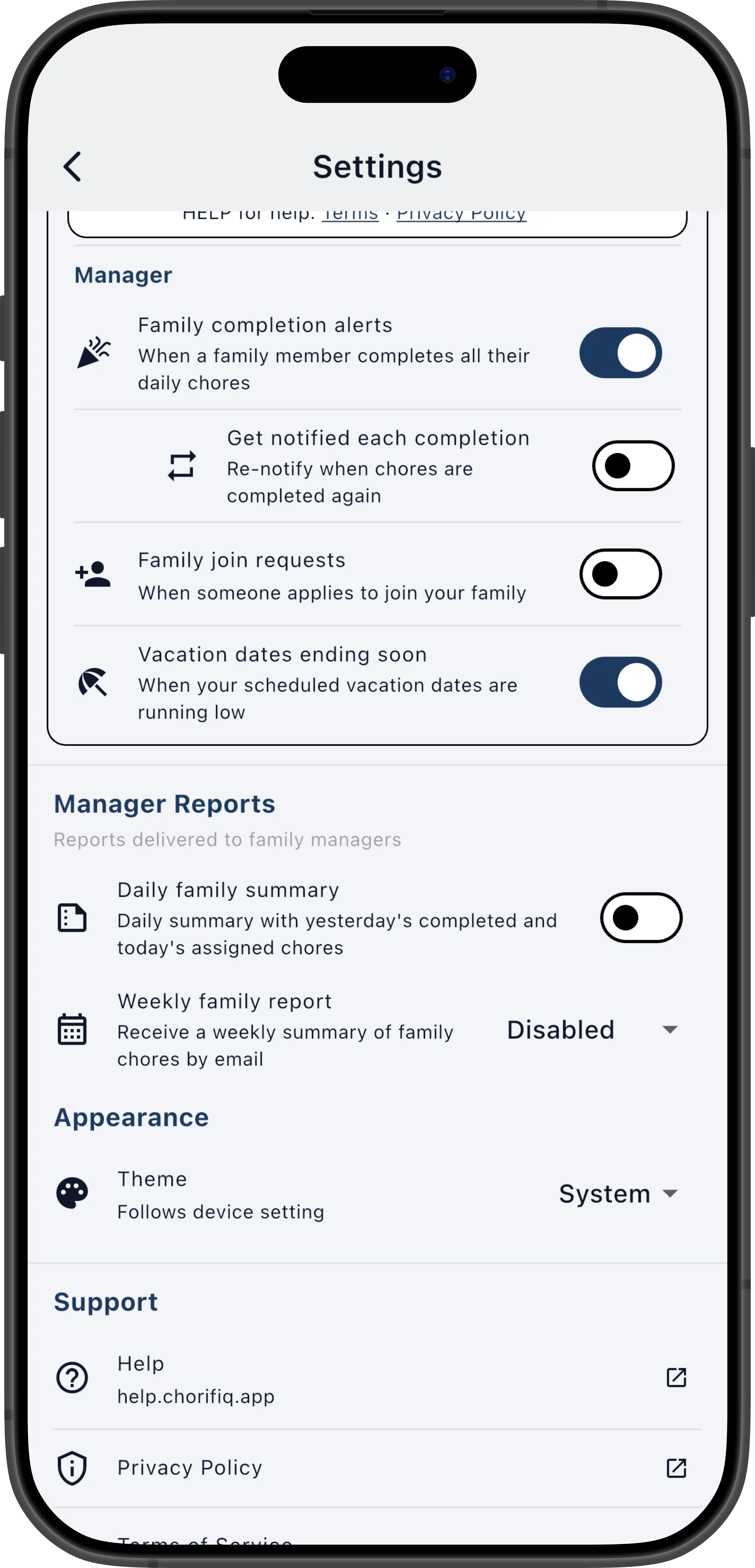
Section titled “Manager Notifications”These toggles control which manager-specific push notifications you receive. They are separate from your personal morning/evening reminders (see Notifications).
Family completion alerts — Sends a notification when a family member completes all of their daily chores. This is the default “all done!” alert — one per member per day.
- Get notified each completion — A sub-option of family completion alerts. When enabled, sends a notification every time any member completes a chore, not just when they finish all of them. This keeps you in the loop in real time but can be frequent in a busy household. When disabled, only the single daily completion alert is sent.
Family join requests — Sends a notification when someone uses your family’s invite code or link and requests to join. This lets you review and approve new members promptly — see Approvals for the approval workflow.
Manager Reports
Section titled “Manager Reports”Manager report settings. If your subscription does not include a report, the row shows an upgrade prompt that links to the subscription screen.
Daily family summary — A daily email summarizing all family members’ chore completion for the day. Requires a Pro or Max subscription. See Manager Daily Summary Email above for details on the report content.
- Summary delivery time — Set the time of day to receive the daily family summary email.
Weekly family report — A weekly email with completion rates, points earned, and streak data for all family members. Select a day of the week to receive the report, or disable it entirely. Requires a Max subscription. See Weekly Family Report above for details on the report content.
For personal notification settings (push, email, SMS, morning/evening reminders, and confetti), as well as the Appearance and Support sections visible at the bottom of the screenshot above, see Notifications. Those settings are available to all members, not just managers.