



Managing Your Subscription
Subscriptions are managed through the ChorifIQ app. All purchases are processed by the App Store (iOS) or Google Play (Android).
View Your Current Plan
Section titled “View Your Current Plan”- Tap the account icon or hamburger menu.
- Tap Subscription.
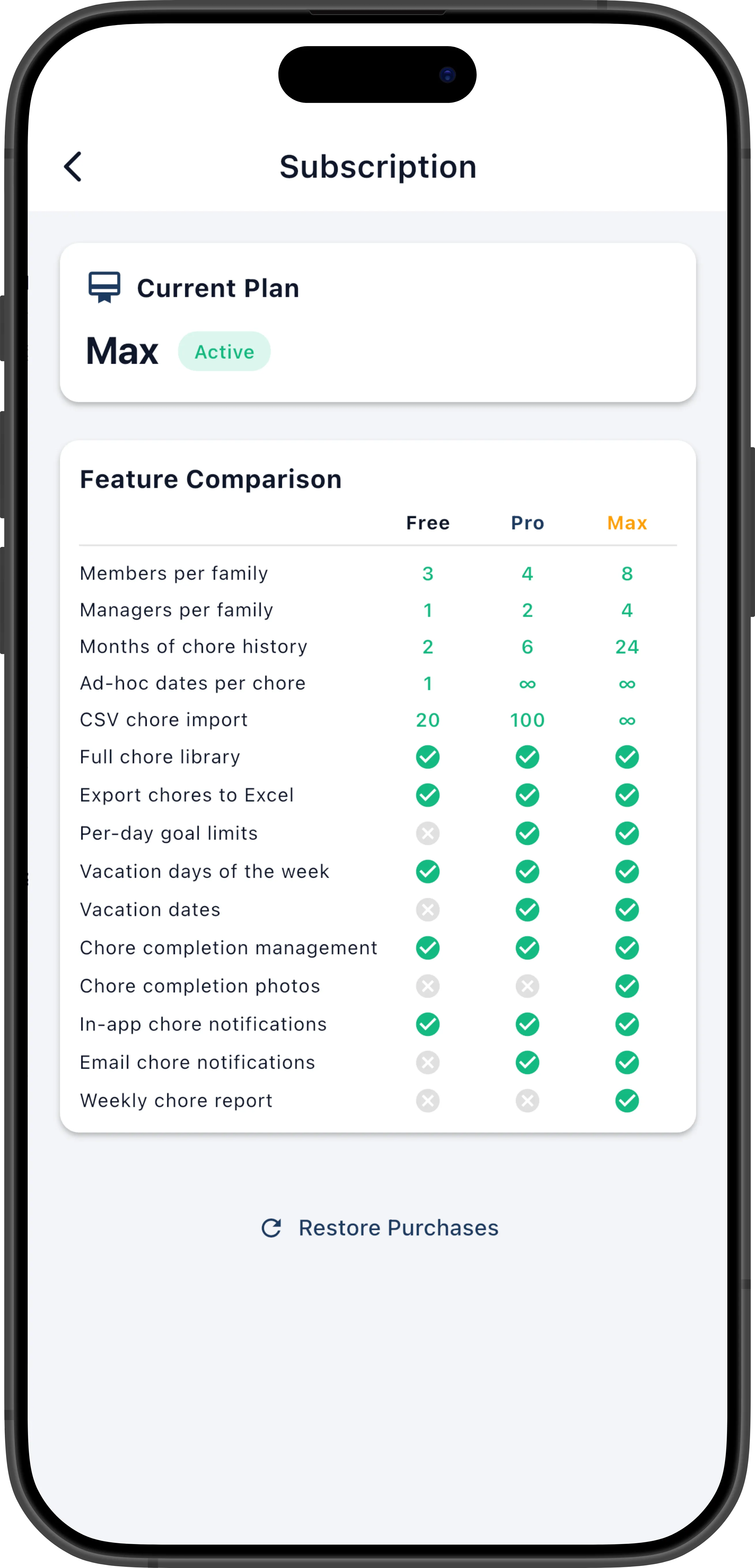
Your current plan is shown at the top of the screen. If you’re on a free plan, it shows Free.
Upgrade to Pro or Max
Section titled “Upgrade to Pro or Max”- Open the Subscription screen (Account → Subscription).
- Review the available plans and pricing.
- Tap the plan you want.
- Select Monthly or Yearly billing.
- Tap Subscribe and confirm the purchase with Face ID, Touch ID, or your device passcode.
The upgrade takes effect immediately. Your family members will have access to the new features right away.
Restore a Previous Purchase
Section titled “Restore a Previous Purchase”If you reinstall the app or sign in on a new device and your subscription isn’t showing:
- Open the Subscription screen.
- Tap Restore Purchases.
This syncs your purchase history from the App Store or Google Play. If you have an active subscription, it will be restored.
Downgrade Your Plan
Section titled “Downgrade Your Plan”Subscriptions cannot be downgraded mid-billing period. To move to a lower tier, cancel your subscription and it will downgrade at the end of your current billing period.