



Assigning Your First Chore
Assigning a chore in ChorifIQ is a two-step process: first you define what the chore is and how it repeats, then that chore definition can be automatically or manually assigned following the specifics of the defition. This page walks through every setting on the New Chore Definition screen.
From the main navigation, tap Chores, then tap + (Add Chore) to open the form.
Basic Information
Section titled “Basic Information”Chore Title
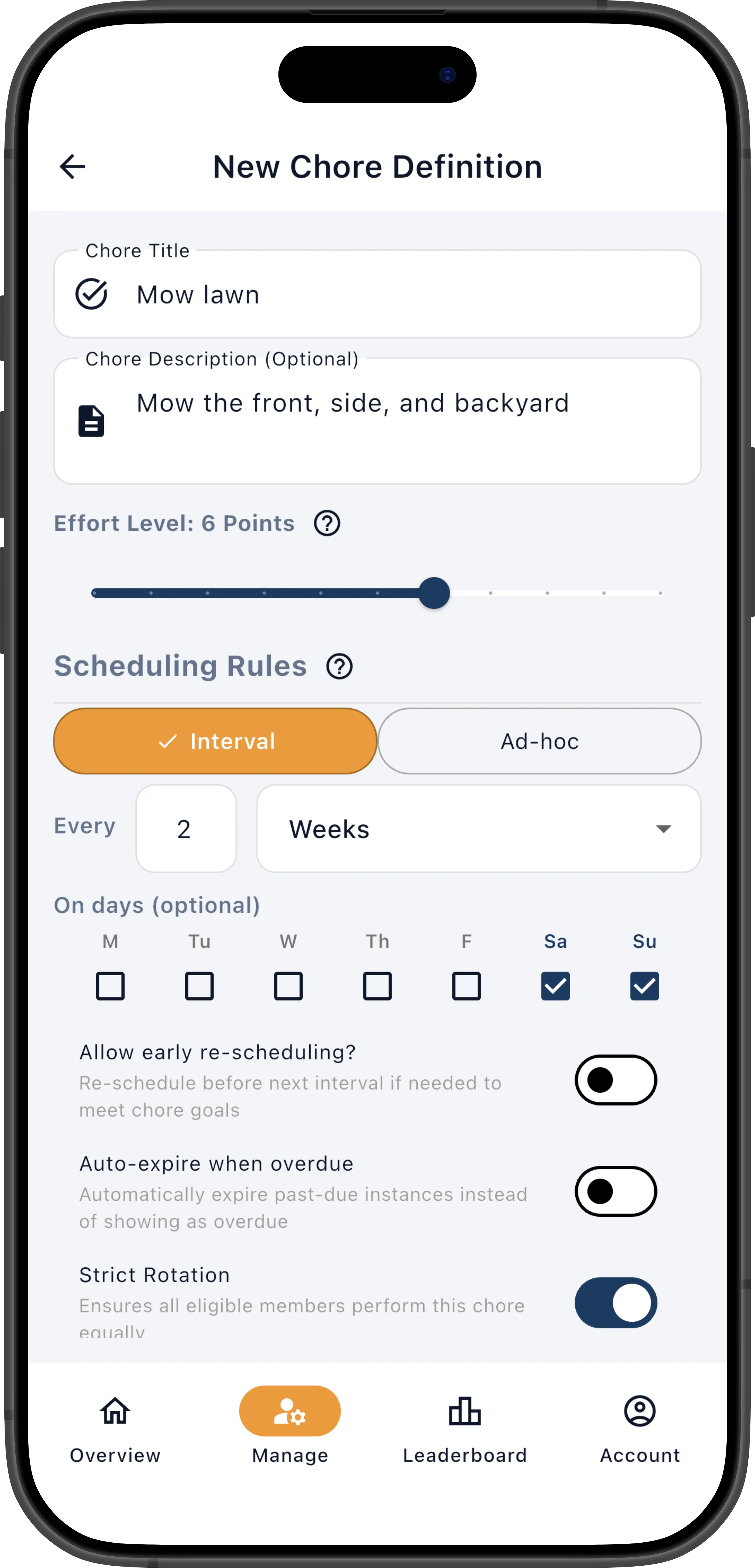
Section titled “Chore Title”The name of the chore (e.g., “Mow lawn”). This is the label members see on their dashboard and in notifications. Required. Maximum 200 characters.
Chore Description
Section titled “Chore Description”An optional free-text field for extra details — what the chore involves, any specific instructions, or supplies needed. Maximum 1,000 characters.
Effort Level
Section titled “Effort Level”A slider from 0 to 10 representing how difficult or time-consuming the chore is. Higher-point chores count more toward a member’s daily goal when using a points-based goal. The main role of effort points is to help the scheduler right-size each member’s day — by giving harder chores more points, ChorifIQ can assign a mix of easy and hard tasks that adds up to a fair daily workload.
There’s no strict formula — set values are relative to each other so they reflect your family’s sense of effort. Some rough guidelines:
- 1–3 — Quick tasks: wipe a counter, take out the trash, feed the dog
- 4–6 — Medium tasks: vacuum a room, unload the dishwasher, fold laundry
- 7–10 — Bigger jobs: mow the lawn, deep-clean a bathroom, organize the garage
Your scale is up to you. Some families use nearly all 1’s for everyday tasks and reserve 2–3 for the really big chores — they just set daily point goals lower to match. Others spread the full 1–10 range. Either works; just make sure the daily goal you set for each member lines up with the scale you chose.
Scheduling Rules
Section titled “Scheduling Rules”The scheduling section controls when and how often assignments are created. Choose one of two schedule modes using the Interval / Ad-hoc toggle.
Interval Schedule
Section titled “Interval Schedule”Interval chores repeat on a regular cycle. Configure the cycle with two controls:
- Frequency value — A number (1 or higher) entered in the text box next to “Every.”
- Frequency unit — A dropdown with Day(s), Week(s), Month(s), or Year(s).
Together these form the repeat rule. For example, Every 2 Weeks means ChorifIQ will schedule a new assignment two weeks after the previous one.
On Days (optional)
Section titled “On Days (optional)”A row of day-of-week checkboxes (M, Tu, W, Th, F, Sa, Su). When one or more days are checked, ChorifIQ will only schedule the chore on those days, even if the interval would otherwise land on a different day. Leave all unchecked to allow any day.
Example: A chore set to Every 1 Week with only Sa checked will always be scheduled on Saturday.
Allow Early Re-scheduling
Section titled “Allow Early Re-scheduling”Default: Off. When enabled, ChorifIQ may schedule a new assignment before the normal interval has elapsed if doing so helps meet a member’s chore goals. When disabled, the scheduler strictly waits for the full interval to pass before creating the next assignment.
This is helpful for flexible chores where the timing isn’t critical. For example, “Dust living room shelves” might be set to every 5 days, but if a member has capacity and no other chores on day 3, enabling early re-scheduling lets ChorifIQ fill that gap rather than leaving the member with nothing to do.
Ad-hoc Schedule
Section titled “Ad-hoc Schedule”Ad-hoc chores are not on a repeating cycle. Instead, you pick one or more specific calendar dates using a date picker. Each selected date generates its own assignment. Use this for one-off or irregular tasks — for example, “Prep house for holiday party” on a single date, or “Water neighbor’s plants” on a handful of dates while they are away.
Completion & Expiration
Section titled “Completion & Expiration”Chore Assignment Statuses
Section titled “Chore Assignment Statuses”Every assignment moves through a lifecycle. Understanding the states makes the settings below easier to reason about.
| Status | Meaning | Streak effect | Counts toward / leaderboard |
|---|---|---|---|
| Pending | Assigned and waiting to be done | — | — |
| Completed | Finished on or before the due date | Continues streak | Yes |
| Completed Late | Finished after the due date | Breaks streak | Yes |
| Excused | Manager forgave the chore — it didn’t need to happen | Continues streak | No |
| Expired | Past due and no longer actionable | Breaks streak | No |
Expired is the key state for this section: once a chore expires it can no longer be completed, breaks the member’s streak, and does not count toward their goals or leaderboard score. The settings below control when and how that happens.
For a full explanation of each status — including how to excuse or manually expire an assignment — see Chore Assignment Statuses.
Auto-expire When Overdue
Section titled “Auto-expire When Overdue”Default: Off. When enabled, a sub-field appears asking for the number of days after the due date (0–30) before the assignment is automatically marked as expired instead of remaining overdue.
- 0 (immediate) — The assignment expires as soon as the due date passes. Use this for time-sensitive chores that no longer make sense once the moment has passed — “Set the dinner table” on Tuesday night is pointless to complete on Wednesday when it’s assigned to someone else.
- 1–30 — The assignment stays overdue for that many extra days, then expires. A grace period of 1–2 days works well for chores like “Take out the recycling bin” where the member might still do it the next morning.
This prevents stale, uncompleted assignments from piling up on a member’s dashboard. Without auto-expire, an overdue “Cook dinner” from last Monday stays on a member’s list all week, cluttering their view and eventually requiring manual cleanup. Expired assignments do not count as completed and break the member’s streak.
Strict Rotation
Section titled “Strict Rotation”Default: Off. When enabled, ChorifIQ rotates the chore evenly across all eligible members. It tracks each member’s most recent assignment and always assigns the next instance to the member who has gone the longest without doing it. This guarantees equal distribution over time.
Strict rotation works well for chores that everyone should share equally — “Empty the dishwasher” or “Take out the trash” are classics. Without strict rotation, the scheduler may assign a chore to whoever has the most goal capacity, which could mean one member does it three times in a row while another hasn’t touched it.
Strict rotation requires at least two eligible members to be meaningful.
Allow Self-Assign
Section titled “Allow Self-Assign”Default: On. When enabled, any eligible member can assign this chore to themselves from their dashboard using the + button. When disabled, only the scheduler or family manager can create assignments.
Self-assign is great for households that want flexibility — rather than the manager dictating every task, members can browse available chores and pick up what they’re willing to do. It pairs naturally with a goals-based system: set each member’s daily goal and let them choose which chores fill it. Or, it let’s people who are competitive add chores to stay on top of the leaderboard!
Enforce Chore Restrictions on Self-Assign
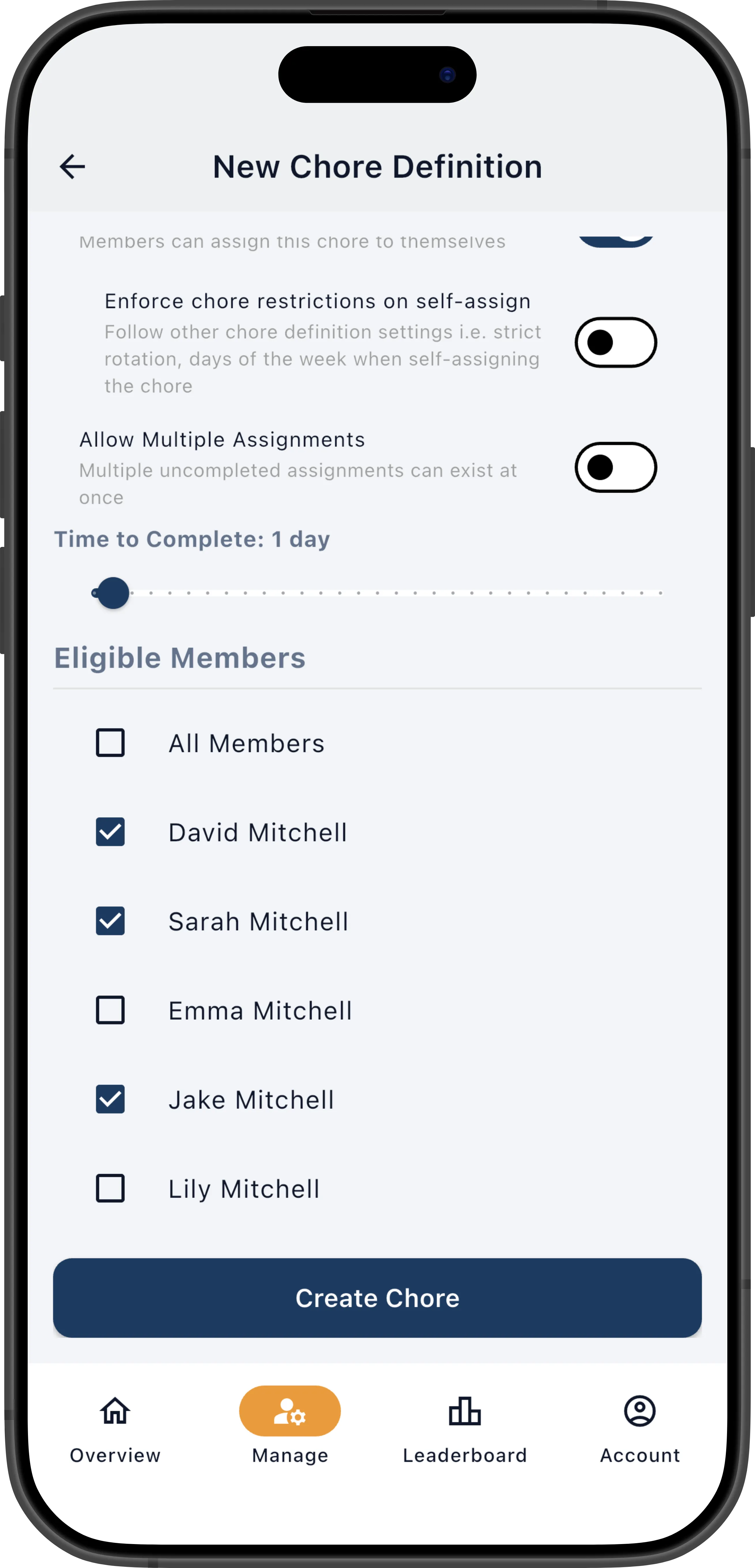
Section titled “Enforce Chore Restrictions on Self-Assign”Default: Off. This nested toggle appears only when Allow Self-Assign is on. When enabled, self-assigned chores must still respect the chore’s scheduling rules — days of the week, interval timing, and strict rotation order all apply. When disabled, a member can self-assign the chore at any time regardless of those rules.
For example, if “Mop the kitchen” is set to every 3 days with enforcement on, a member can’t self-assign it the day after it was last done — they’d have to wait until the interval elapses. With enforcement off, they could grab it any time, which is useful if the kitchen is genuinely dirty and they want credit for doing it.
Allow Multiple Assignments
Section titled “Allow Multiple Assignments”Default: On. When enabled, multiple uncompleted assignments of this chore can exist at the same time — for example, if last week’s “Clean garage” hasn’t been finished, a new one can still be scheduled this week. When disabled, ChorifIQ will not create a new assignment until the current one is completed or expired.
Often, it doesn’t make sense for someone to have an overdue “Empty the dishwasher” assignment and for that same chore to be assigned to someone else the next day — the dishwasher hasn’t been emptied yet, so there’s nothing new to do. Disabling this setting allows only one active assignment of this chore at a time, preventing duplicates from stacking up.
On the other hand, having multiple instances of “Say one nice thing to a sibling” makes sense — even if yesterday’s assignment is still overdue, today is a new day and a new opportunity. A chore like “Pick up your room” might also stack up naturally: each day’s mess is independent of the last.
A good rule of thumb: if the chore describes a specific physical action that can only be done once (emptying a dishwasher, mowing a lawn, taking out the trash), turn this off. If the chore describes a repeatable behavior or something that accumulates independently each day, leave it on.
Time to Complete
Section titled “Time to Complete”A slider from 0 to 30 days that sets how long a member has to finish an assignment after it’s created.
- 0 — No time limit; the assignment stays open indefinitely until completed, excused, or expired.
- 1 — Due the same day it is assigned. This is the most common setting for daily chores like “Make your bed” or “Unload the dishwasher” — things that should be done today.
- 2–30 — Due that many days after assignment. Use longer windows for bigger projects: “Clean out the garage” might get a 7-day window, while “Organize your closet” could get 3 days.
The due date is calculated as the assignment date plus the duration. On-time vs. late completion is tracked against this deadline — completing a chore before its due date continues the member’s streak, while completing it after breaks the streak (though it still counts toward goals and the leaderboard).
When paired with Auto-expire When Overdue, the time-to-complete and auto-expire settings work together: the chore is due in N days, and if it’s still not done after a further grace period, it expires automatically.
Eligible Members
Section titled “Eligible Members”Controls which family members can be assigned this chore.
- All Members — Selected by default. Every approved family member is eligible.
- Individual selection — De-select All Members to reveal checkboxes for each family member. Check the members who should be eligible. At least one member must be selected.
Only eligible members will appear in the scheduler’s rotation. If Strict Rotation is on, the rotation cycles through only the members selected here.
Creating the Chore
Section titled “Creating the Chore”Once all settings are configured, tap Create Chore. ChorifIQ saves the chore definition and it becomes eligible for scheduling during the next scheduling cycle.
What Happens Next
Section titled “What Happens Next”Once you’ve created a few chores, ChorifIQ takes over. The scheduler generates assignments automatically based on each member’s goals, vacation days, and rotation order. Members see their daily chores, complete them, and the system tracks everything — streaks, leaderboard rankings, and stats.
To see all of these features working together in a realistic scenario, read A Week with ChorifIQ.