



Your Profile
Your profile stores your name, avatar, and contact details. Your display name and avatar are visible to all family members on the dashboard and leaderboard. Update these any time from the Account section.
Open Your Profile
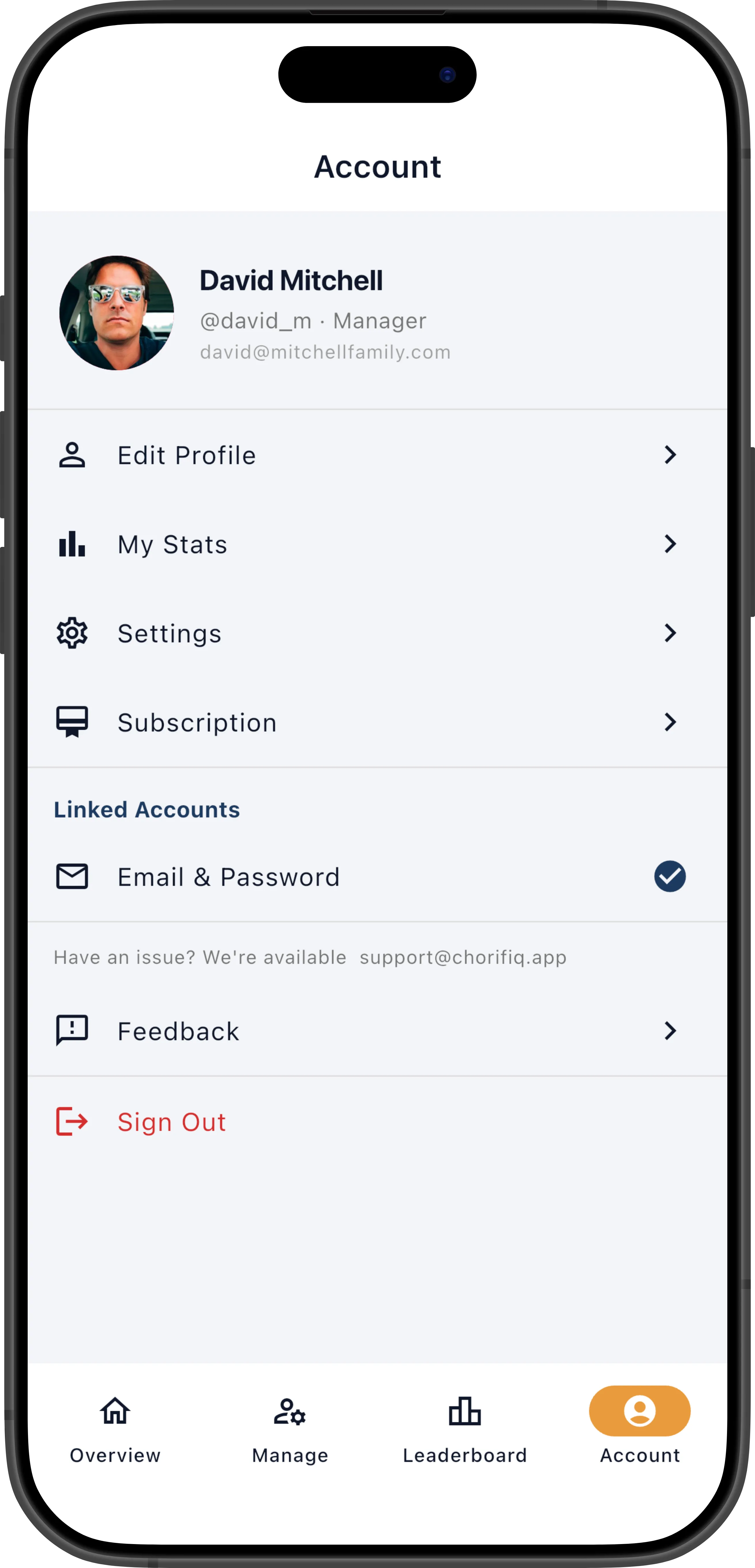
Section titled “Open Your Profile”- Tap the Account tab (bottom navigation) or the hamburger menu.
- Tap Edit Profile.
Edit Your Display Name
Section titled “Edit Your Display Name”Your display name is what family members see on the dashboard and leaderboard.
- Tap the Display Name field.
- Type your new name.
- Tap Save (the button activates once changes are detected).
Edit Your Username
Section titled “Edit Your Username”Your username is a unique identifier across all ChorifIQ users.
- Tap the Username field.
- Type your desired username.
- ChorifIQ checks availability in real time and shows an error if it’s taken.
- Tap Save.
Update Your Profile Photo
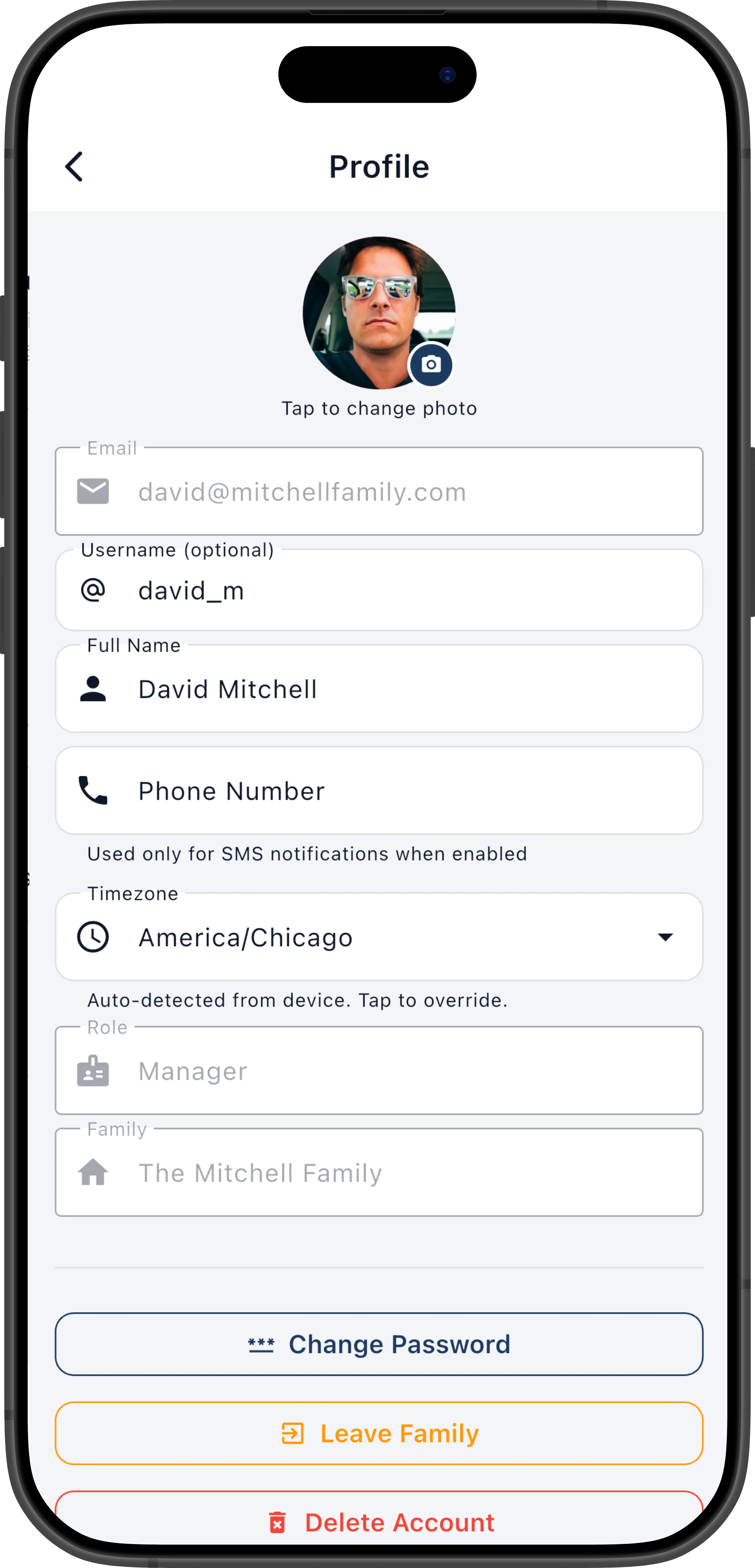
Section titled “Update Your Profile Photo”- On the Profile screen, tap your avatar (the circular photo at the top).
- Choose a photo from your gallery or take a new one with the camera.
- The photo is automatically cropped and uploaded.
Add or Update Your Phone Number
Section titled “Add or Update Your Phone Number”Your phone number is used for SMS notifications (Max tier only). It is never shared publicly.
- Tap the Phone Number field.
- Enter your number in the format
+1XXXXXXXXXX(include your country code). - Tap Save.
Change Your Timezone
Section titled “Change Your Timezone”ChorifIQ uses your timezone to determine when chores are due, when notifications are sent, and when the daily schedule resets (midnight in your timezone). By default, the app detects your timezone automatically from your device.
To manually set your timezone:
- On the Profile screen, tap the Timezone field.
- A searchable list opens — type part of your timezone name (e.g., “Chicago”, “London”, “Tokyo”) to filter.
- Select your timezone — it updates immediately.
To revert to automatic detection, tap the Auto-detect option at the top of the timezone picker. When auto-detect is on, the app syncs your timezone from your device settings each time it launches.
My Account Info
Section titled “My Account Info”Below your editable profile fields, you’ll find a read-only My Account Info section. This shows settings that your family manager controls on your behalf:
| Item | What it shows |
|---|---|
| Goal | Your current goal type and target — e.g., “5 points per week” or “3 chores per day”. Shows “No goal set” if your manager hasn’t assigned one. |
| Age Group | Adult, Teen, or Child. Minor accounts (Teen/Child) see a “(minor account)” label. This affects which features are available to you. |
| Scheduling | Whether your chore scheduling is Active or Paused. When paused, no new chores are assigned to you. |
| Family Vacation Days | Which days of the week are family vacation days (shown as circle chips), plus any upcoming specific vacation dates. Chores aren’t scheduled on vacation days. |
Leave Your Family
Section titled “Leave Your Family”If you want to leave your current family:
- Go to Account.
- Tap Leave Family.
- Confirm the action.
Leaving removes you from the family and clears all your chore assignments. Your account is not deleted — you can join a different family with a new invite code.
Change Your Password
Section titled “Change Your Password”If you signed up with an email and password (not Apple or Google), you can change your password:
- On the Profile screen, tap Change Password.
- ChorifIQ sends a password reset email to your account email address.
- Tap the link in the email to set a new password.