



Leaderboard
The Leaderboard shows how family members rank against each other in different categories. It’s a fun way to stay motivated and celebrate who’s pulling their weight.
Open the Leaderboard
Section titled “Open the Leaderboard”Tap Leaderboard from the main navigation (or find it in the menu).
Leaderboard Views
Section titled “Leaderboard Views”The leaderboard has three tabs:
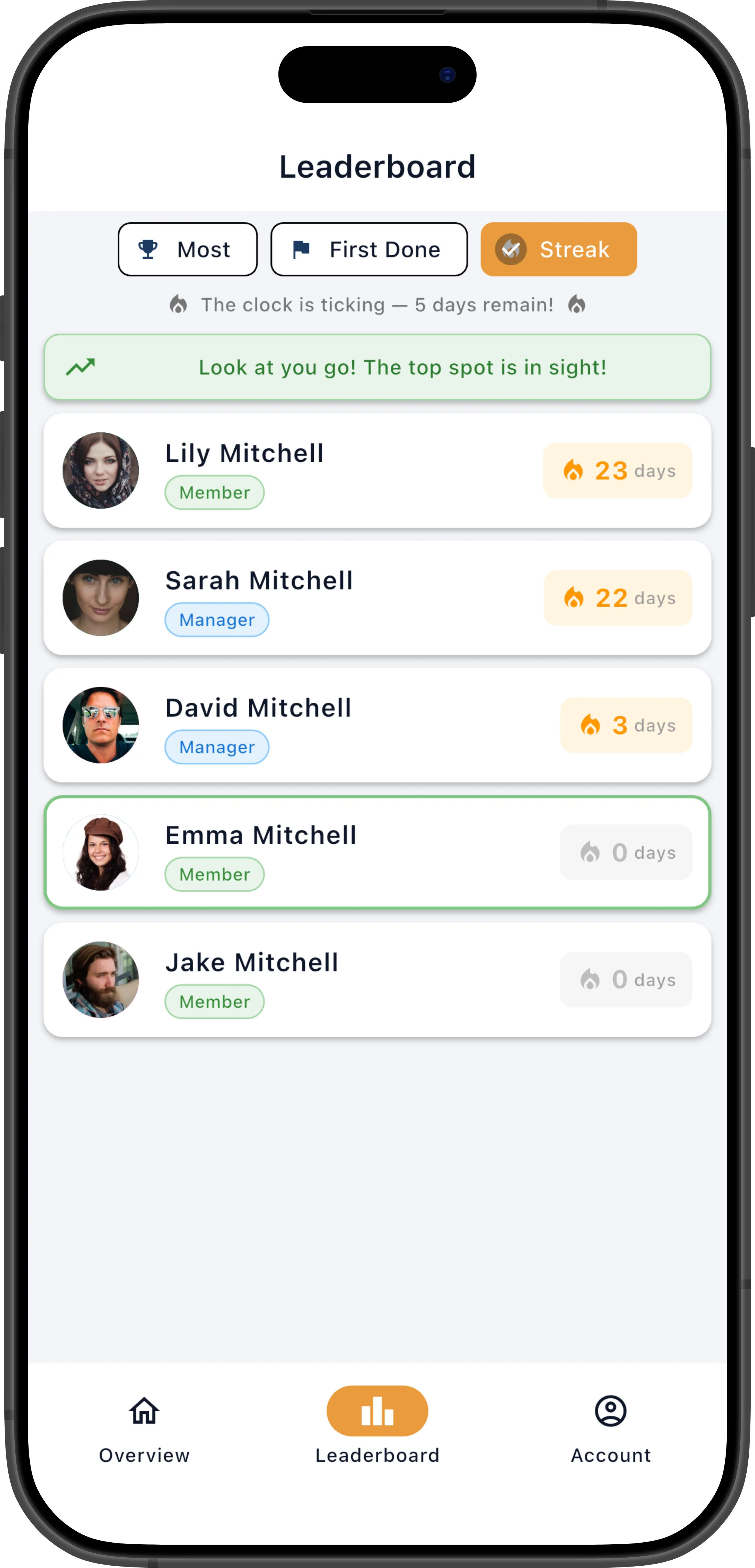
Streak
Section titled “Streak”Shows who has the longest consecutive-day streak. Your streak increments each day you complete all your assigned chores on time (or have them excused). Completing a chore late or letting one expire breaks the streak.
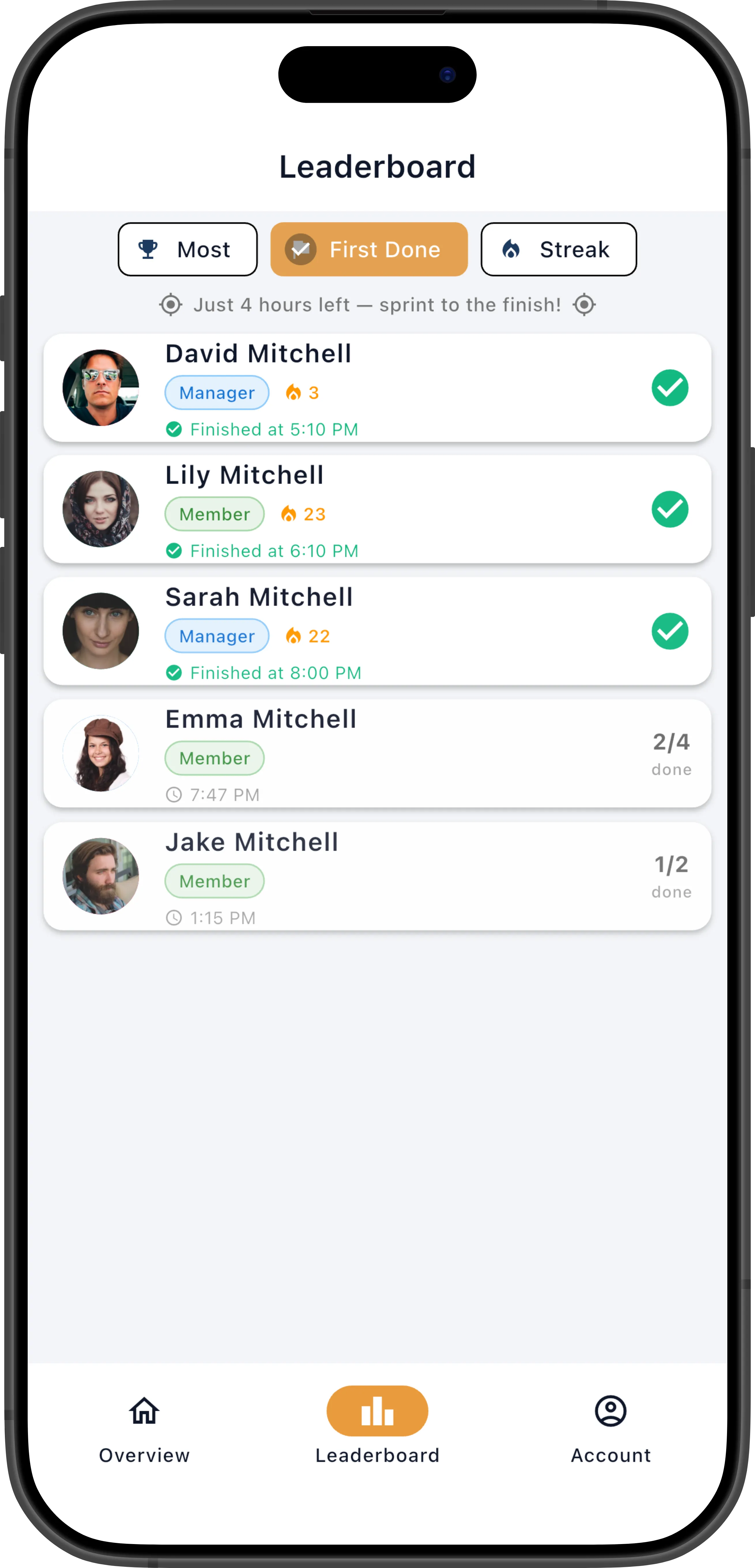
First Done
Section titled “First Done”Shows who completed all their chores first today. This resets each day at midnight.
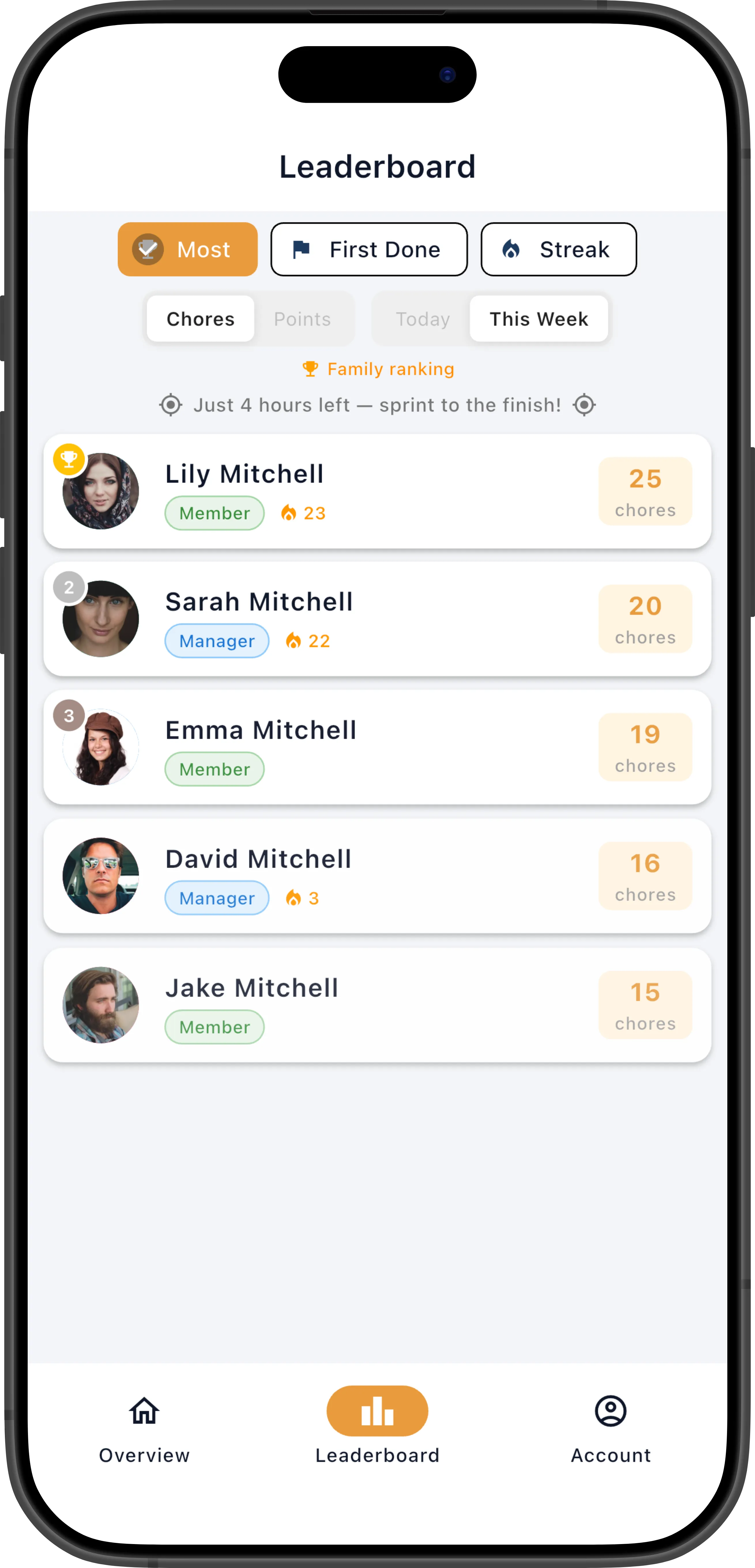
Shows who has completed the most chores or earned the most effort points, with controls for:
- Metric: Chores (count) or Points (effort)
- Timeframe: Today or This Week
Your family’s manager chooses the official ranking metric — either chore count or effort points — in Family Settings > Leaderboard ranking. The official metric is what drives weekly leaderboard notifications, email digest rankings, and the weekly family report standings. When you open the Most tab, it defaults to the family’s official metric.
You can still toggle between Chores and Points to explore both views, but the “official” badge only appears when you’re viewing the family’s chosen metric in the This Week timeframe.
Animated Rank Changes
Section titled “Animated Rank Changes”When you open the leaderboard and positions have shifted since your last visit, cards animate to their new positions. Your own card is highlighted with a colored border during the animation — green if you moved up, amber if you dropped.
Encouraging Messages
Section titled “Encouraging Messages”If your rank changed, a motivational message appears below the ranking selector:
- Moved up: A green card with an encouraging message like “Nice work! Keep it up and you’ll stay on top!”
- Dropped: An amber card with a motivating nudge like “You can get your spot back — knock out a few more chores!”
Messages rotate so you see fresh encouragement each day.
Leaderboard Notifications
Section titled “Leaderboard Notifications”You can receive a push notification when someone passes you on the weekly leaderboard. This is enabled by default — toggle it in Settings > Leaderboard updates.
- Notifications fire the first time you drop in rank, then pause until you climb back up.
- If you’re in the app when your rank changes, you’ll see a snackbar instead of a push notification.
- Not available for child accounts (under 13).
Leaderboard in Emails
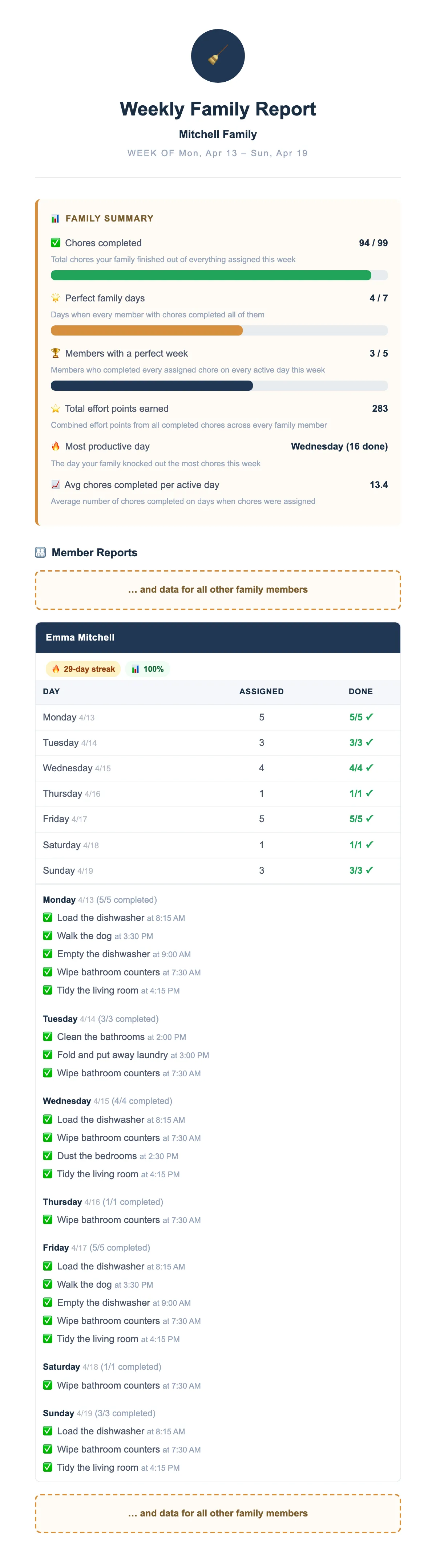
Section titled “Leaderboard in Emails”Your current weekly leaderboard position appears in morning and evening email digests (Pro and Max plans). The weekly family report (Max only) also includes a full leaderboard standings section with movement arrows showing who climbed or dropped.
Manager Exclusion
Section titled “Manager Exclusion”Your family’s manager can choose to be excluded from the leaderboard. When this setting is enabled, managers won’t appear in the rankings — only members are ranked and scored. Managers can still view the leaderboard to see how members are doing.
If you notice a manager is missing from the leaderboard, this setting is likely enabled. Only a manager can change it in Family Settings > Exclude managers from leaderboard.
Member Profiles
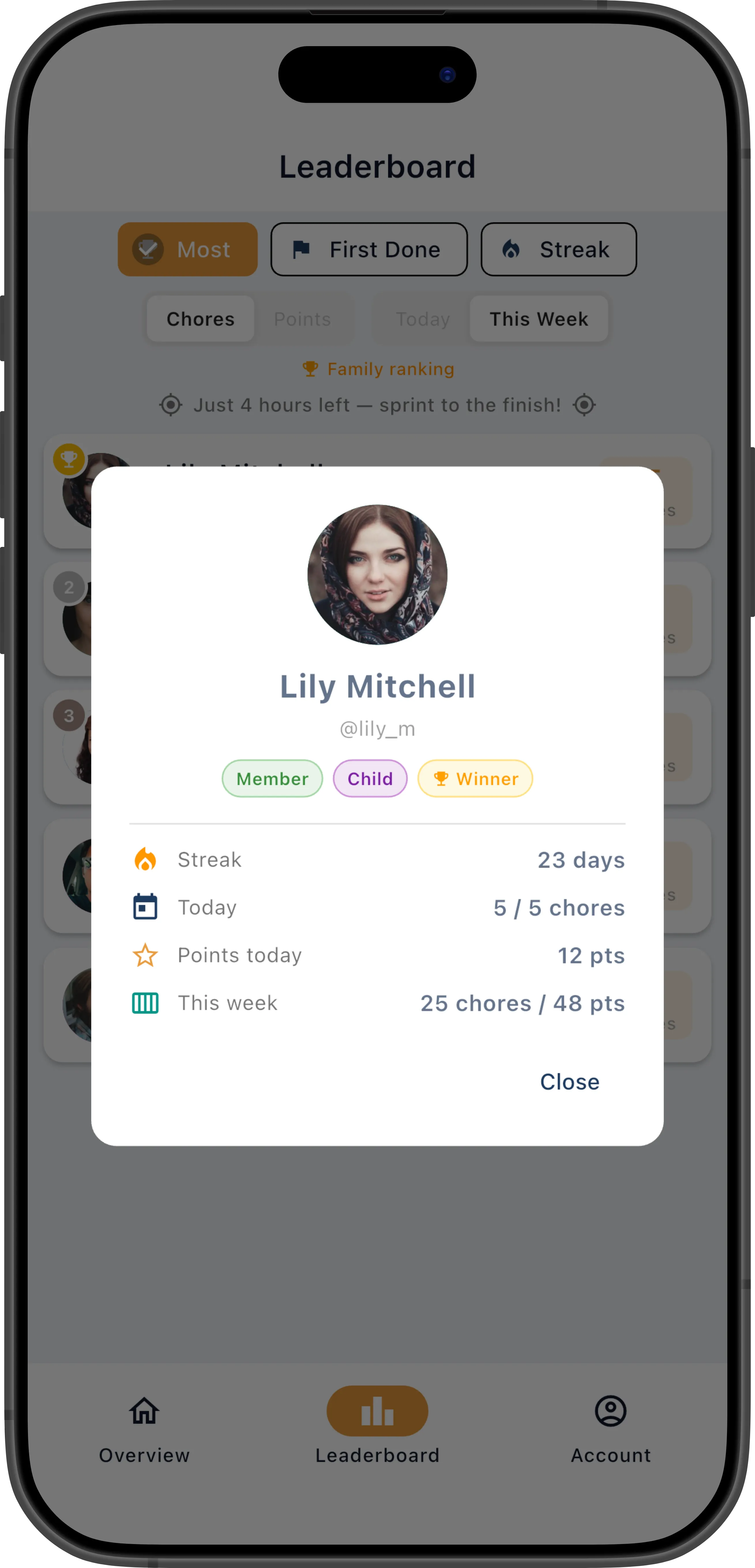
Section titled “Member Profiles”Tap any member on the leaderboard to open a profile dialog showing their avatar, stats, and current goal progress. This is a quick way to check in on how someone is doing without leaving the leaderboard.
- Switch between the timeframe toggles to see daily vs. weekly champions.
- The leaderboard updates in real time as family members complete chores.
- Managers can also see the leaderboard — it’s a great way to recognize members who are doing the most work.