



Notifications
ChorifIQ can remind you about chores through on-device notifications, email, and SMS. You control all settings from your personal Settings screen.
Open Notification Settings
Section titled “Open Notification Settings”- Tap the account icon or hamburger menu.
- Tap Settings.
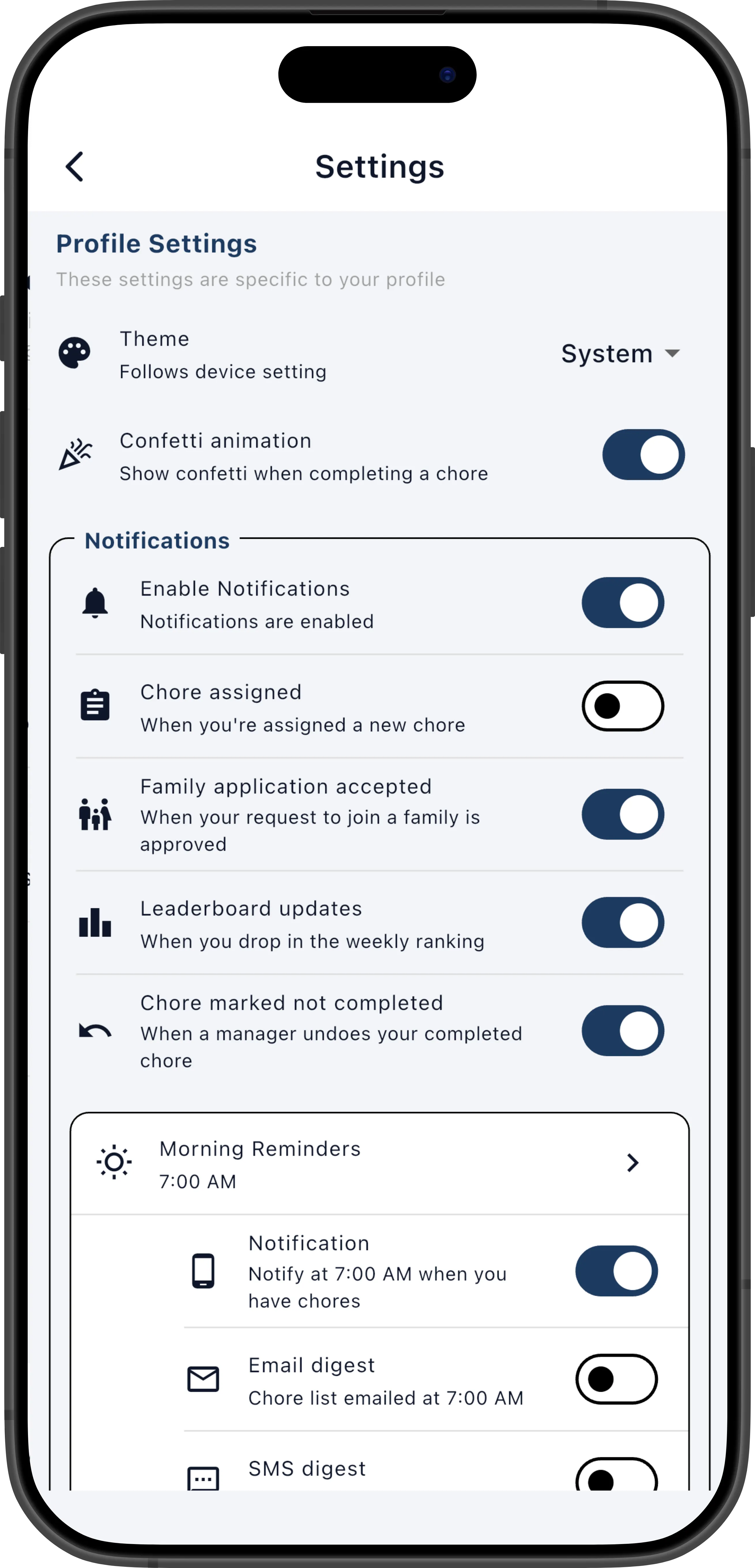
Master Toggle
Section titled “Master Toggle”The Enable Notifications switch at the top enables or disables all notification delivery at once. When off, no reminders are sent regardless of other settings.
Morning Reminders
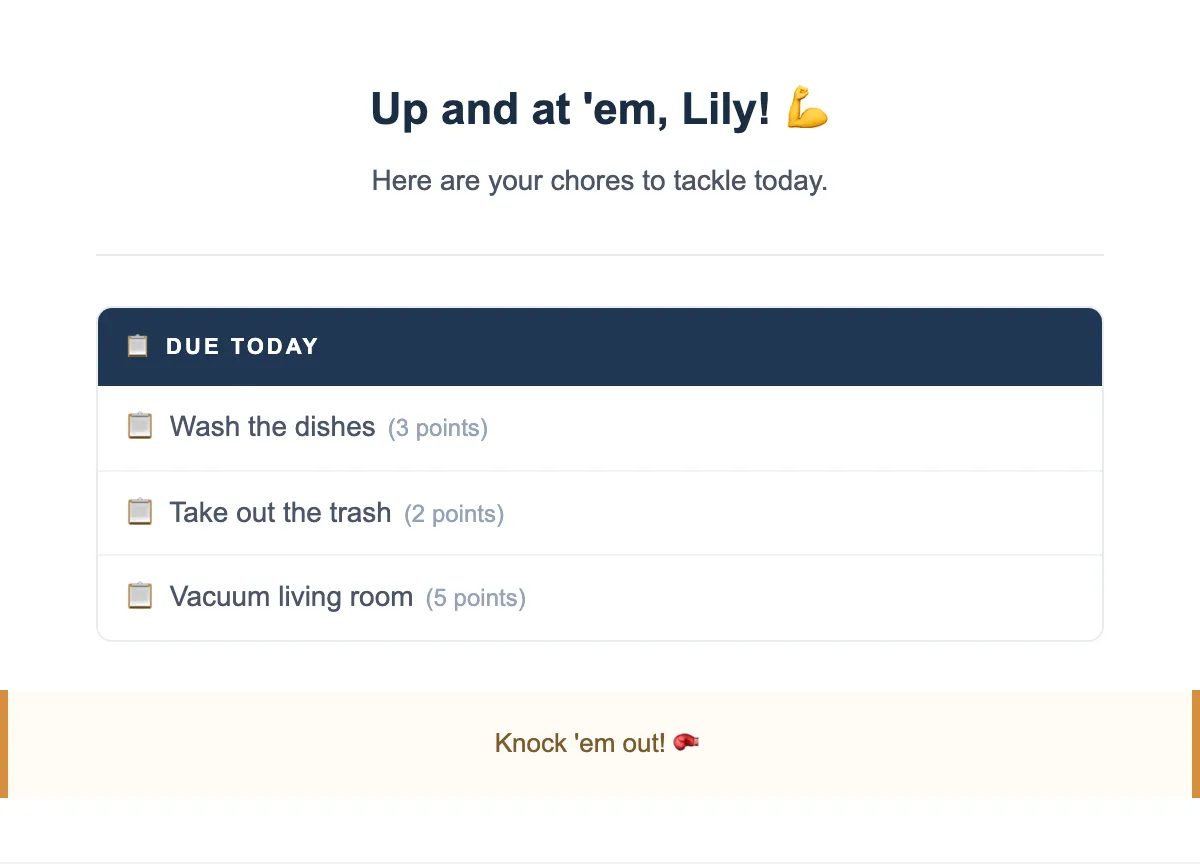
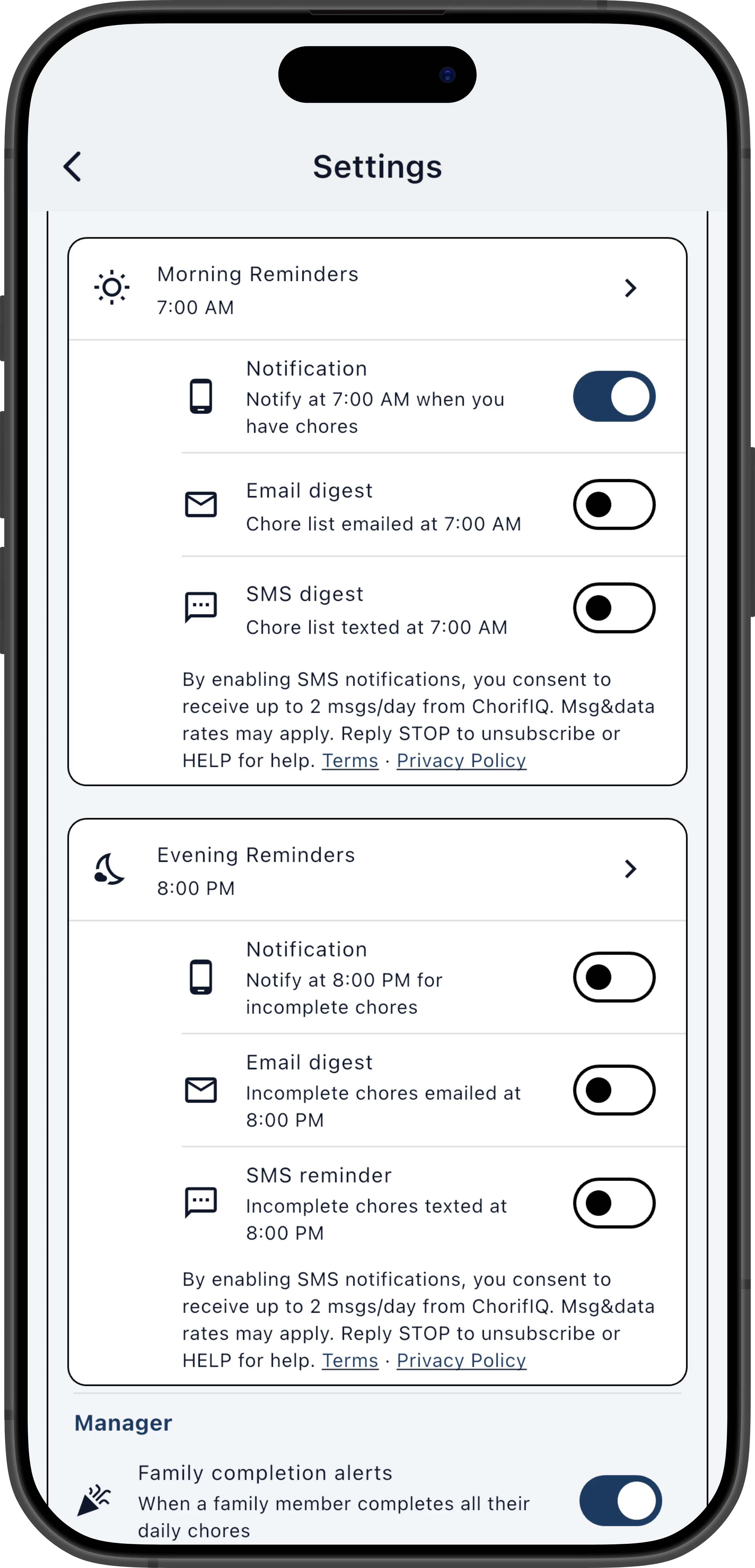
Section titled “Morning Reminders”The Morning Reminders section controls how you are notified at the start of the day about chores due today.
Morning reminder time — Tap to set the time (default: 7:00 AM). This one time is shared by all morning delivery channels below.
Morning delivery channels
Section titled “Morning delivery channels”Each channel can be turned on or off independently:
| Channel | Who can use it | Who controls it |
|---|---|---|
| Notification | All members | Self (adults/teens); parent controls for children |
| Email digest | Pro & Max | Self (adults); parent controls for minors |
| SMS digest | Max only — adults only | Adults only (not available for children or teens) |
Morning notifications are only sent if you have at least one chore due today. If your schedule is clear, no notification is sent.
Evening Reminders
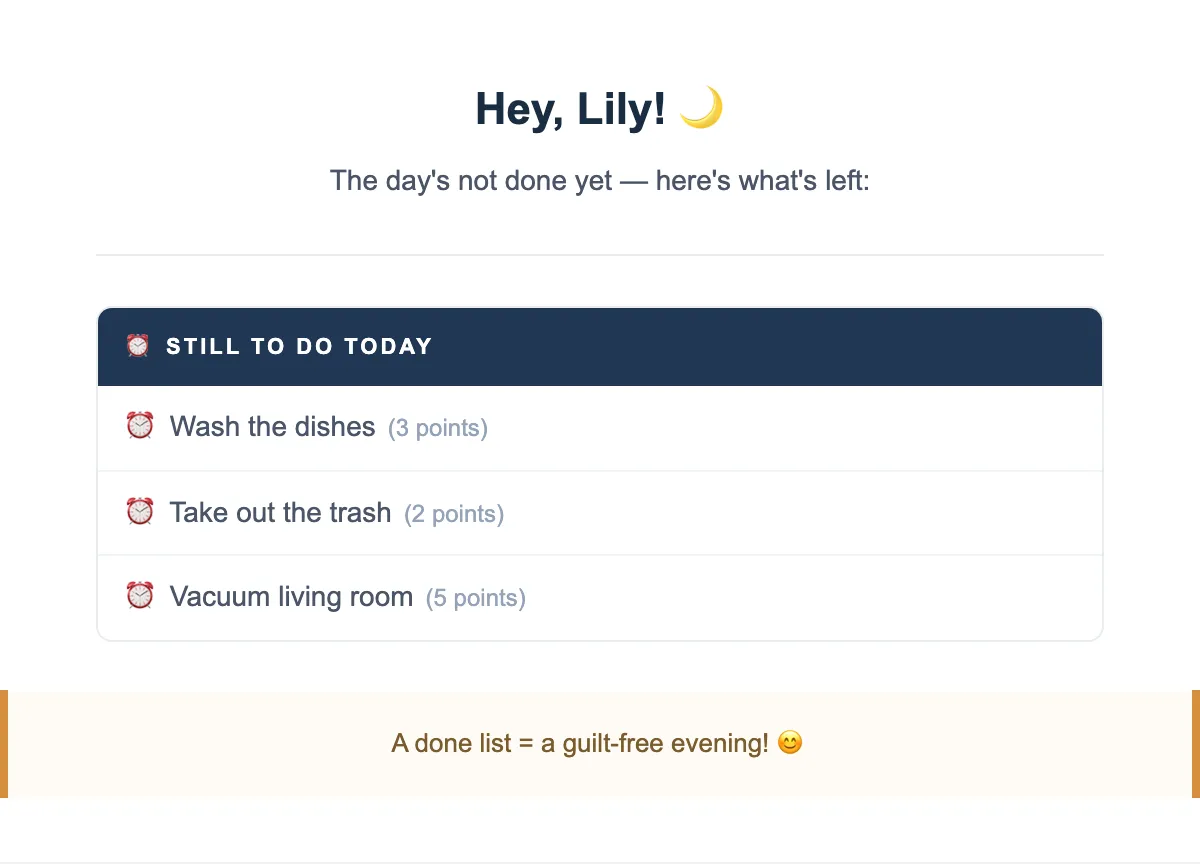
Section titled “Evening Reminders”The Evening Reminders section sends a reminder if you still have incomplete chores at the end of the day.
Evening reminder time — Tap to set the time (default: 8:00 PM). This one time is shared by all evening delivery channels below.
Evening delivery channels
Section titled “Evening delivery channels”| Channel | Who can use it | Who controls it |
|---|---|---|
| Notification | All members | Self (adults/teens); parent controls for children |
| Email digest | Pro & Max | Self (adults); parent controls for minors |
| SMS reminder | Max only — adults only | Adults only (not available for children or teens) |
Evening notifications are only sent if you have at least one incomplete chore due today. If everything is done, no reminder is sent.
Other Notification Types
Section titled “Other Notification Types”These notifications are separate from the morning/evening reminder system:
| Notification | Who receives it | When |
|---|---|---|
| Chore Assigned | Member | When a chore is assigned to you (typically overnight) |
| Chore Marked Not Completed | Member | When a manager marks one of your completed chores as not completed |
| Member Approved | Member | When your join request is approved |
| Leaderboard updates | Member (teen/adult) | When you drop in the weekly chore ranking |
| Family completion alerts | Managers | When a member completes all their daily chores |
| Family join requests | Managers | When someone requests to join the family |
Because the scheduler runs after midnight, “Chore Assigned” push notifications are delivered in the middle of the night. If you’d rather not be woken up, turn off the Chore Assigned push notification and rely on your Morning Reminder instead — it delivers the same information at a time you choose.
Manager: Completion Notifications
Section titled “Manager: Completion Notifications”As a manager you can choose how you’re notified about chore completions:
- Notify once per day — A single notification when a member finishes all their chores for the day. This is the less noisy option — you get one “all done!” alert per member per day.
- Notify on each completion — A notification every time any member completes a chore. This keeps you in the loop in real time but can be frequent in a busy household.
Minor Accounts and Notifications
Section titled “Minor Accounts and Notifications”- Children (under 13) — All notification enables are managed by a family manager from the Manage → Family → People screen. Children can set their preferred morning and evening reminder times in their own Settings screen.
- Teens (13–17) — Teens manage their own notifications and push notifications. Email digest is enabled or disabled by a family manager.
- SMS is not available for children or teens. SMS messaging services are regulated commercial campaigns, and carriers and industry regulations prohibit including minors in these programs. SMS reminders are only available to adult (18+) members.
Subscription Requirements
Section titled “Subscription Requirements”- Email digest (morning & evening) — Requires a Pro or Max subscription.
- SMS digest and SMS reminder — Requires a Max subscription and a phone number on your profile.
If your plan does not include a channel, tap the upgrade link shown next to that toggle in Settings.
Stop SMS Messages
Section titled “Stop SMS Messages”Reply STOP to any ChorifIQ SMS to immediately unsubscribe from all SMS notifications. Your SMS settings will be automatically disabled in the app.
Additional Settings
Section titled “Additional Settings”Confetti — A per-user setting that plays a celebration animation when you complete a chore. Toggle it on or off in your Settings screen.
Appearance
Section titled “Appearance”Theme — Controls the app’s color scheme. Options are System (follows your device’s light/dark mode setting), Light, and Dark. The default is System.
Support
Section titled “Support”The bottom of the Settings screen provides quick links to help and legal resources:
- Help — Opens the ChorifIQ help site at help.chorifiq.app.
- Privacy Policy — Opens the ChorifIQ privacy policy.
- Terms of Service — Opens the ChorifIQ terms of service.
Vacation Days
Section titled “Vacation Days”To silence notifications on specific days (e.g., weekends), set vacation days in your settings. Notifications are skipped on those days. See Vacation for details.