



Completing Chores
Your Today’s Chores dashboard shows everything assigned to you that’s due today, along with any overdue chores from previous days. Completing a chore is one tap.
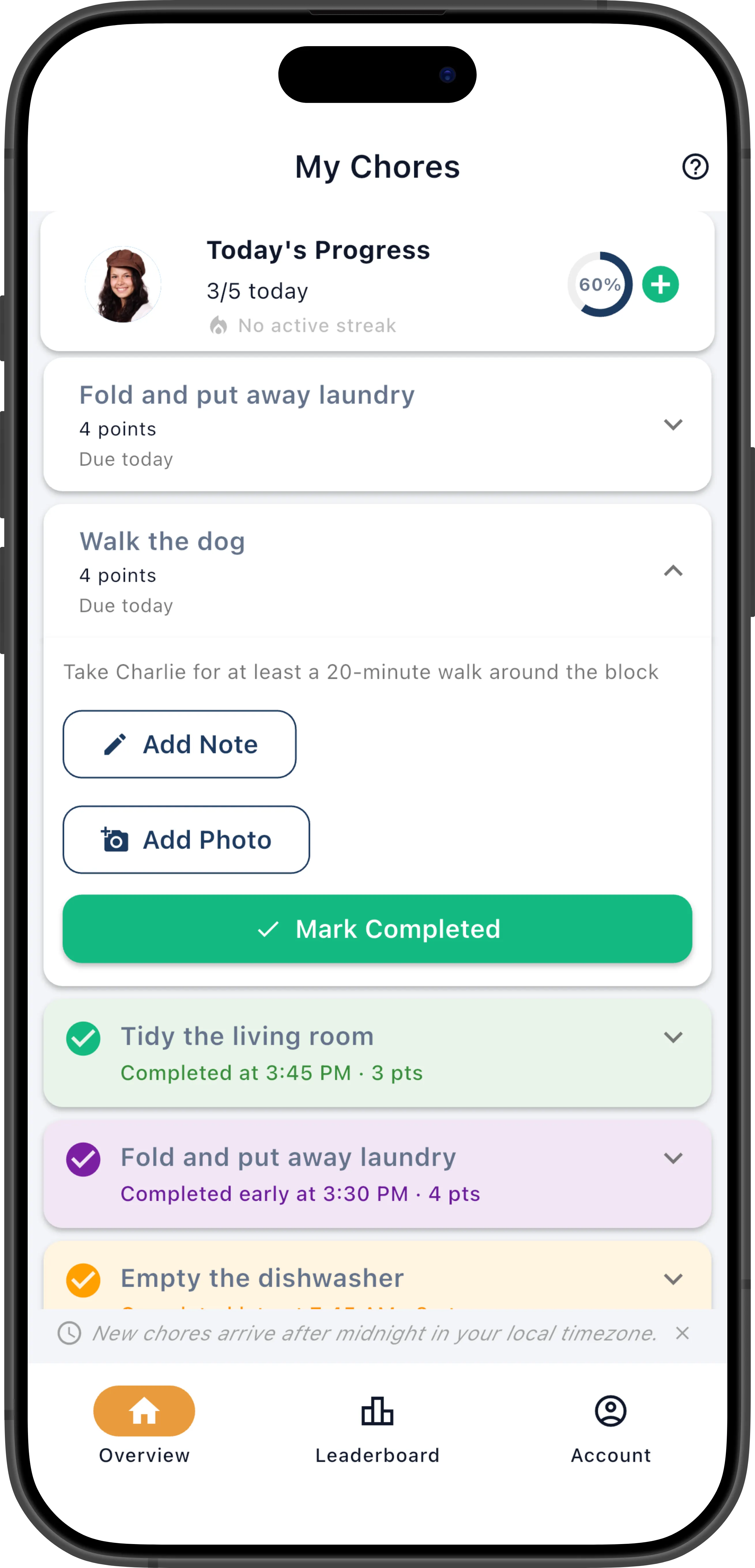
Each chore card shows the chore name, its effort points value, and its due date. Overdue chores are highlighted so they stand out from today’s assignments.
Mark a Chore Complete
Section titled “Mark a Chore Complete”- Open the app — you’ll land on Today’s Chores.
- Find the chore you’ve finished.
- Tap the checkbox next to it.
The chore is marked done and moves to your completed section. The points from that chore are immediately added to your goal progress for the day.
Each completion is a small domino. The effort points flow into your goal progress for the day, your streak extends when you finish everything on time, and your position on the leaderboard updates in real time. If you finish all your chores before anyone else, you claim the First Done spot. Completing a chore isn’t just checking a box — it advances your standing across the entire system.
If you have Confetti enabled in your Settings, a celebration animation plays across the screen each time you complete a chore — a small but satisfying reward.
Adding a Note
Section titled “Adding a Note”When you tap a chore to expand it, you’ll see a notes field where you can leave a message about the chore — for example, “I noticed the trash bag was already full so I took it out too” or “The vacuum was broken so I swept instead.” There’s a single note per assignment shared between you and your manager, so the typical flow is: you fill it in when completing the chore, and if the manager sends it back (uncompletes it), they can update the note to explain what still needs to be done.
Completion Photos
Section titled “Completion Photos”You can optionally attach photos to a completed chore as proof of completion. This is a great way to show your work — a photo of a freshly made bed, a clean kitchen, or a tidy yard.
- Tap a completed chore to expand it.
- Tap Add Photo.
- Take a photo with your camera or choose one from your gallery.
- The photo is uploaded and attached to the chore assignment.
You can add multiple photos to a single chore. Tap any photo to open a swipeable gallery viewer where you can swipe through all attached photos. You can delete your own photos from the gallery.
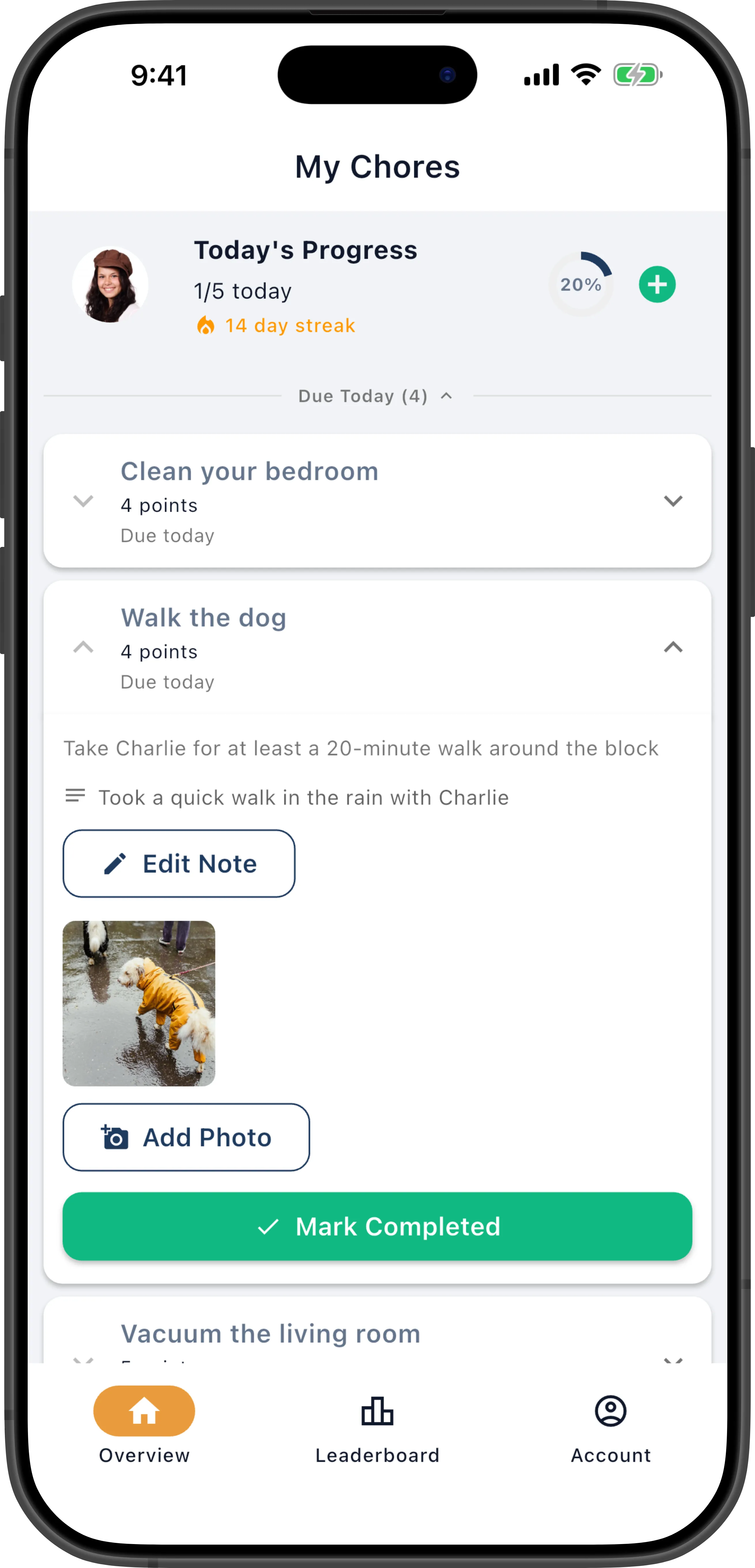
Photos are visible to managers and the assigned member.
Refresh Your Chore List
Section titled “Refresh Your Chore List”Pull down on the chores list to refresh and load any new assignments. This is useful if a manager has just assigned a chore via Quick Assign or if the schedule has been updated.
Completing Late
Section titled “Completing Late”If you mark a chore done after its due date, it’s recorded as completed late. Late completions still count toward your goals and the leaderboard, but they break your streak. Only on-time completions continue your streak.
It’s still better to complete a chore late than to let it expire — late completions earn you points and count toward your goal, while expired chores earn nothing.
Undo a Completion
Section titled “Undo a Completion”Made a mistake? Both you and your manager can uncomplete a chore, reverting it back to pending status so it reappears on your active list.
Common reasons to undo a completion:
- Accidental tap — You marked the wrong chore as done.
- Realized it wasn’t fully done — You thought you finished but later noticed you missed part of it.
- Manager review — Your manager sees the chore wasn’t done properly and sends it back for another pass. They can update the note to explain what still needs to be done.
What Happens After You Complete Everything?
Section titled “What Happens After You Complete Everything?”Once you’ve completed all your chores for the day, your dashboard shows a completion state. Your progress counts toward:
- Your daily goal (if one is set by your manager) — the progress bar fills as you complete chores
- Your streak — consecutive days with all chores completed on time
- The leaderboard — see how you compare to other family members
- The First Done leaderboard tab — finish all your chores before anyone else to claim the top spot
If your manager has the family completion alert enabled, they’ll receive a notification letting them know you’ve finished everything.
See Goals & Progress and Leaderboard for more.
The Past Section
Section titled “The Past Section”Chores from the previous 3 days appear in a collapsed Past section at the bottom of your daily view. Tap the Past (N) divider to expand it. These chores fall into four categories:
Completed (green) — You finished the chore on or before the due date. Counts toward your goals and points, and continues your streak.
Completed Late (orange) — You finished the chore after its due date. Counts toward your goals and points, but breaks your streak.
Excused (grey) — Your manager forgave the chore (e.g., it wasn’t needed today). Excused chores don’t count toward your goals or points, but they do not break your streak — the chore is forgiven, not failed.
Expired (red) — The chore went past its due date and was marked expired, either automatically (for time-sensitive chores) or manually by a manager. Expired chores don’t count toward your goals or points, and they do break your streak.
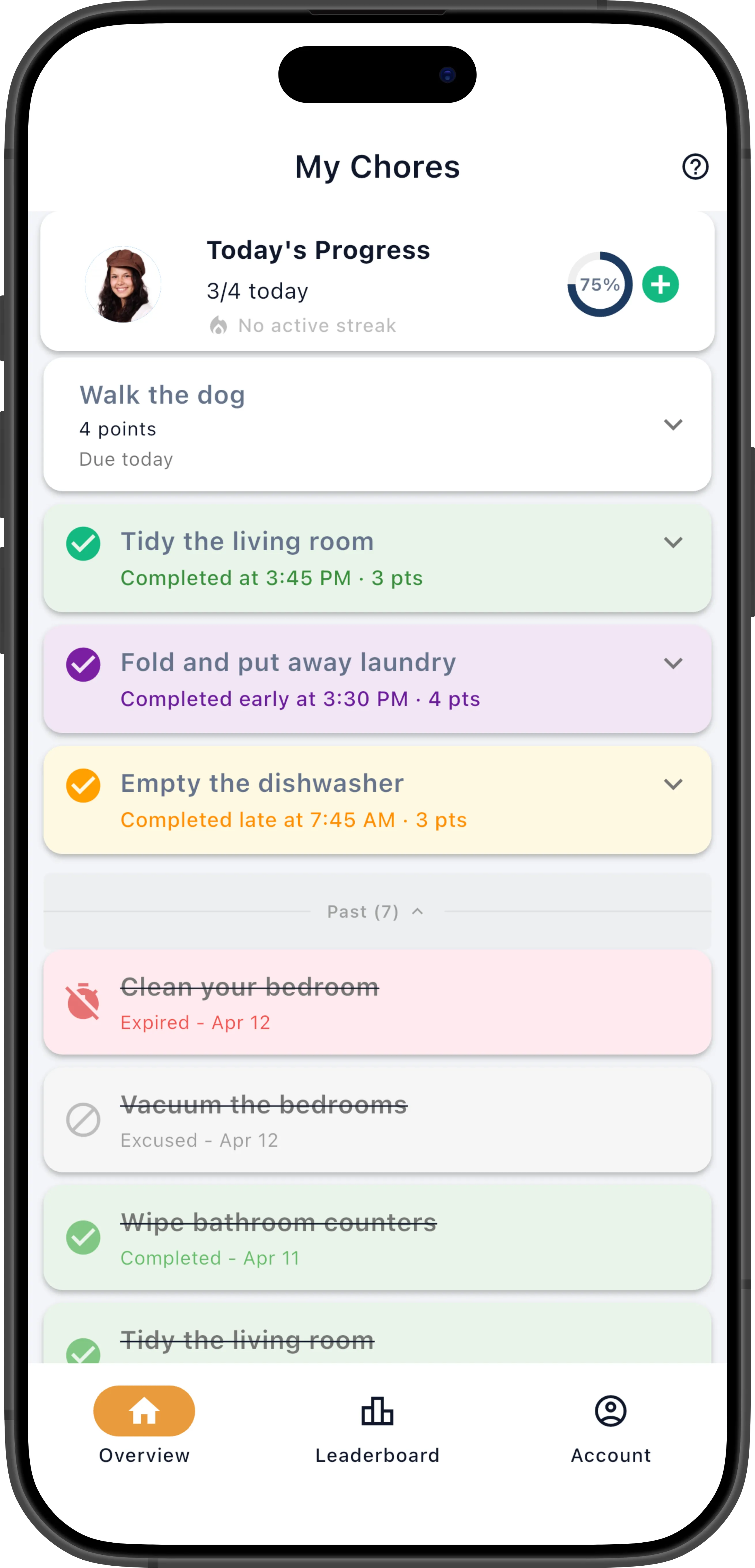
To view chore history older than 3 days, go to Manage → Chores → Assignments.