



Creating an Account
When you open ChorifIQ for the first time, tap the Create Account tab to create your account. Choose the signup method that works best for you — create an account with your e-mail and choose a password. Or, use single sign on via Google or Apple. Note:
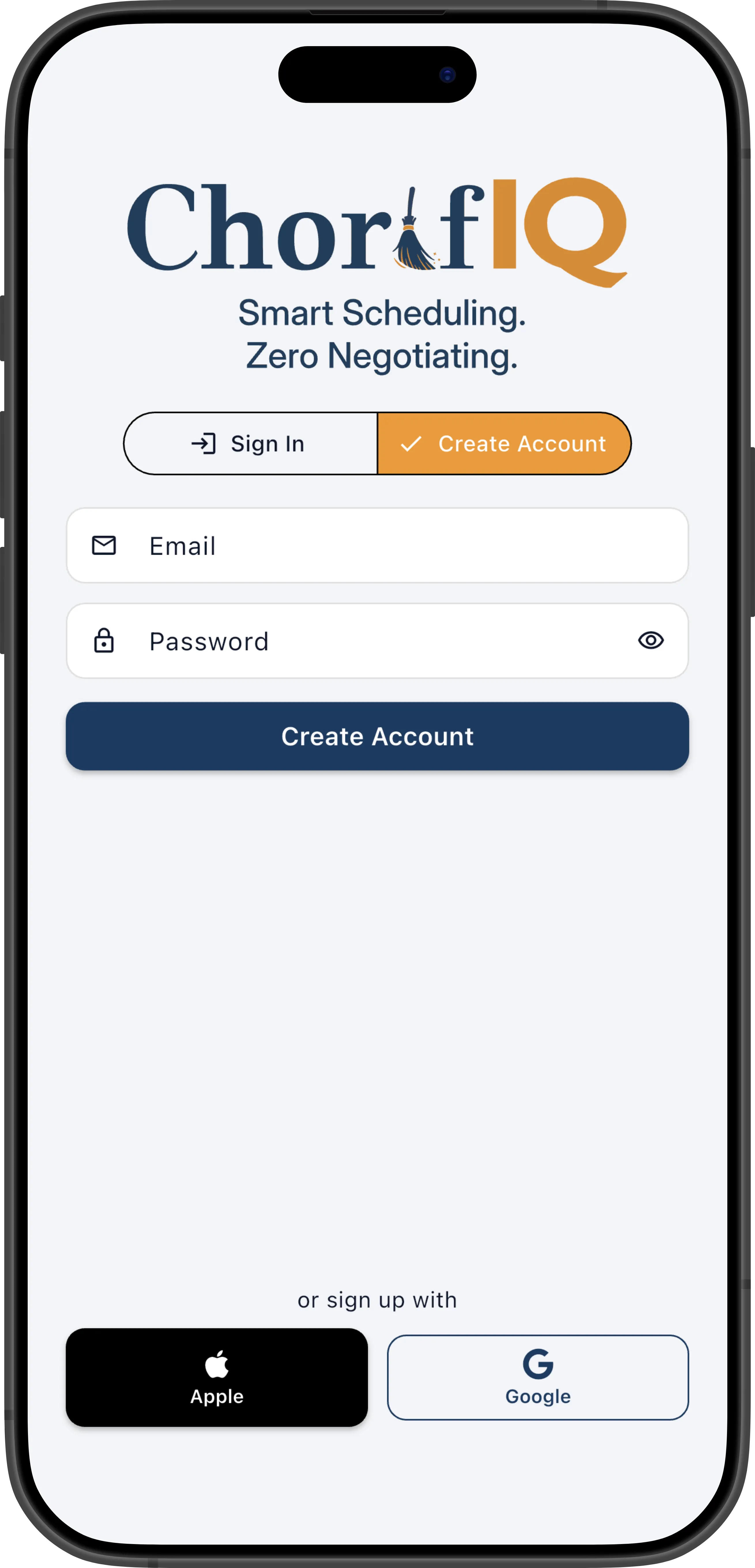
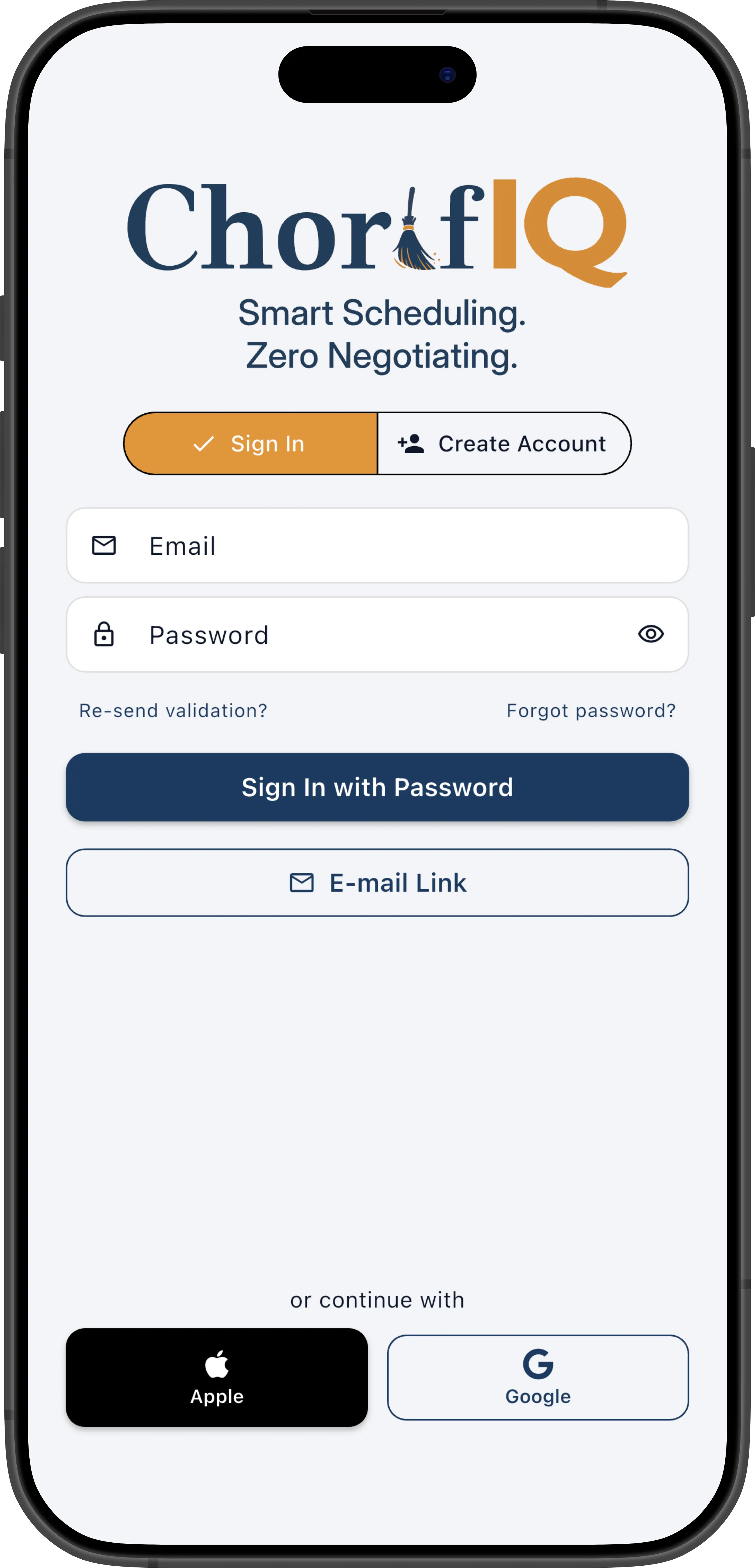
Sign Up with Apple
Section titled “Sign Up with Apple”- Tap Continue with Apple.
- Follow the iOS prompt to sign in with your Apple ID.
- Choose whether to share or hide your email address.
- Continue selecting your age group and completing your profile.
Sign Up with Google
Section titled “Sign Up with Google”- Tap Continue with Google.
- Select your Google account from the list (or enter your email).
- Grant the requested permissions.
- Continue selecting your age group and completing your profile.
Sign Up with Email
Section titled “Sign Up with Email”- Tap the Sign Up tab at the top of the screen.
- Enter your email address and choose a password (at least 8 characters).
- Tap Sign Up.
- Check your email for a verification link and tap it to confirm your address.
- Continue selecting your age group and completing your profile.
Age Verification
Section titled “Age Verification”After signing up, ChorifIQ asks for your age group. This is required for all accounts to comply with legal requirements for apps that users under 18 may use.
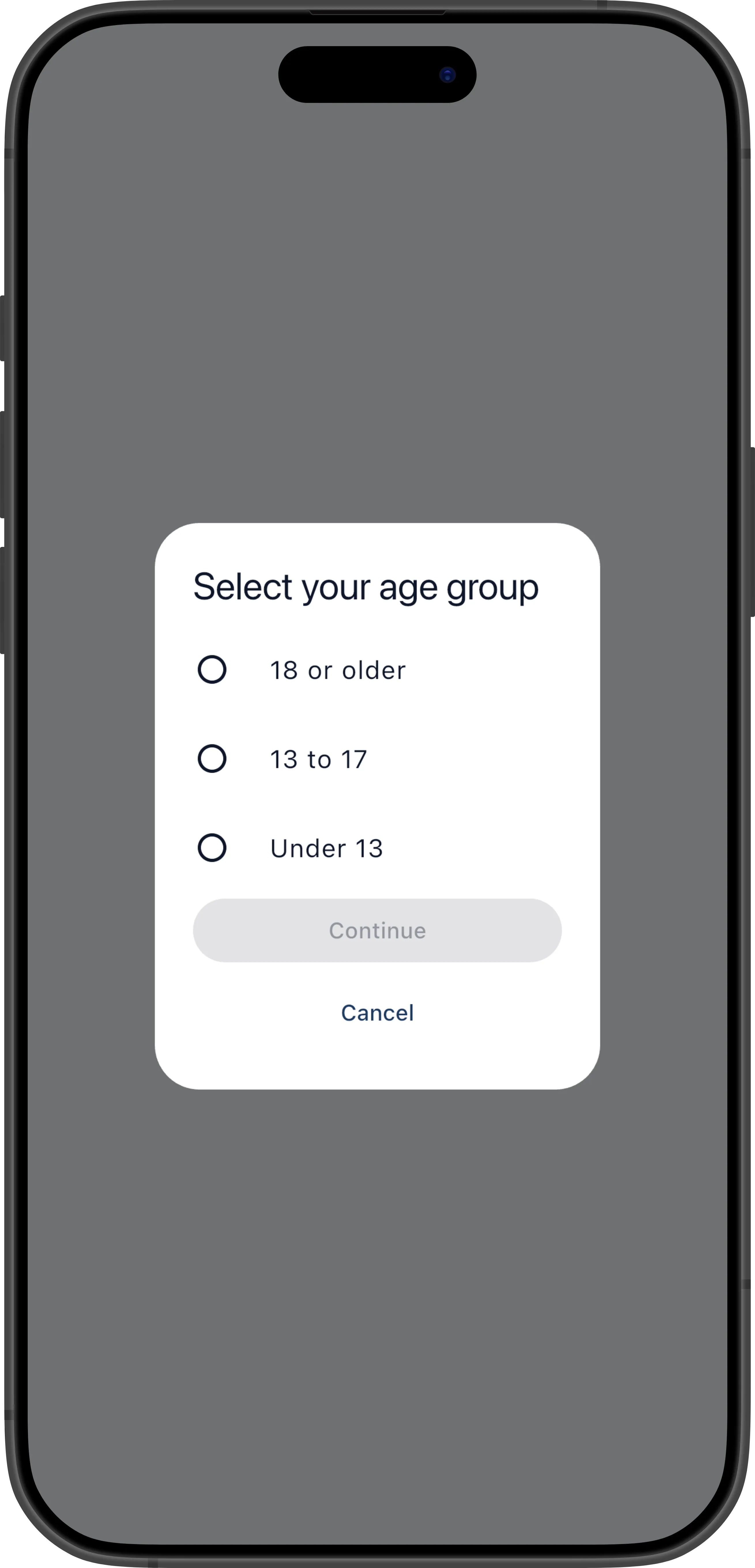
ChorifIQ uses your device’s platform Age Signals API — Apple Age Assurance on iOS or Google Age Signals on Android — to automatically estimate your age group based on information already on file with your app store account. The estimated group is pre-selected for you on the age verification screen. If the device’s Age Signals API doesn’t return an estimate you’ll need to confirm your age group twice.
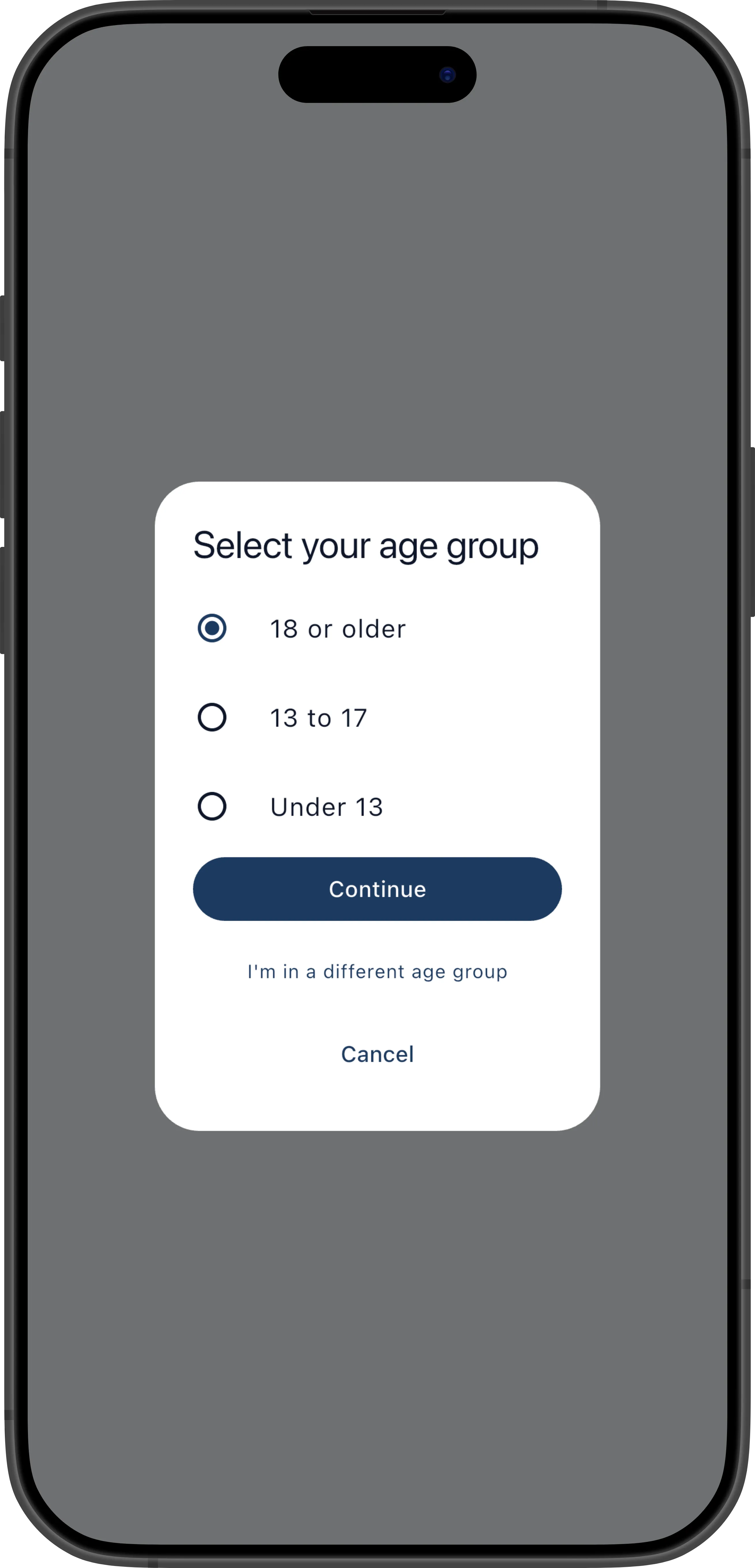
If the estimate looks correct, tap Continue to confirm it.
If the estimate is wrong, tap Select my age group to manually choose the correct group:
- Adult — 18 and older
- Teen — 13–17
- Child — Under 13
Setting Up Your Profile
Section titled “Setting Up Your Profile”After accepting the Terms of Service, you’ll see the Complete Your Profile screen. This is where you set up your identity and choose whether to create or join a family.
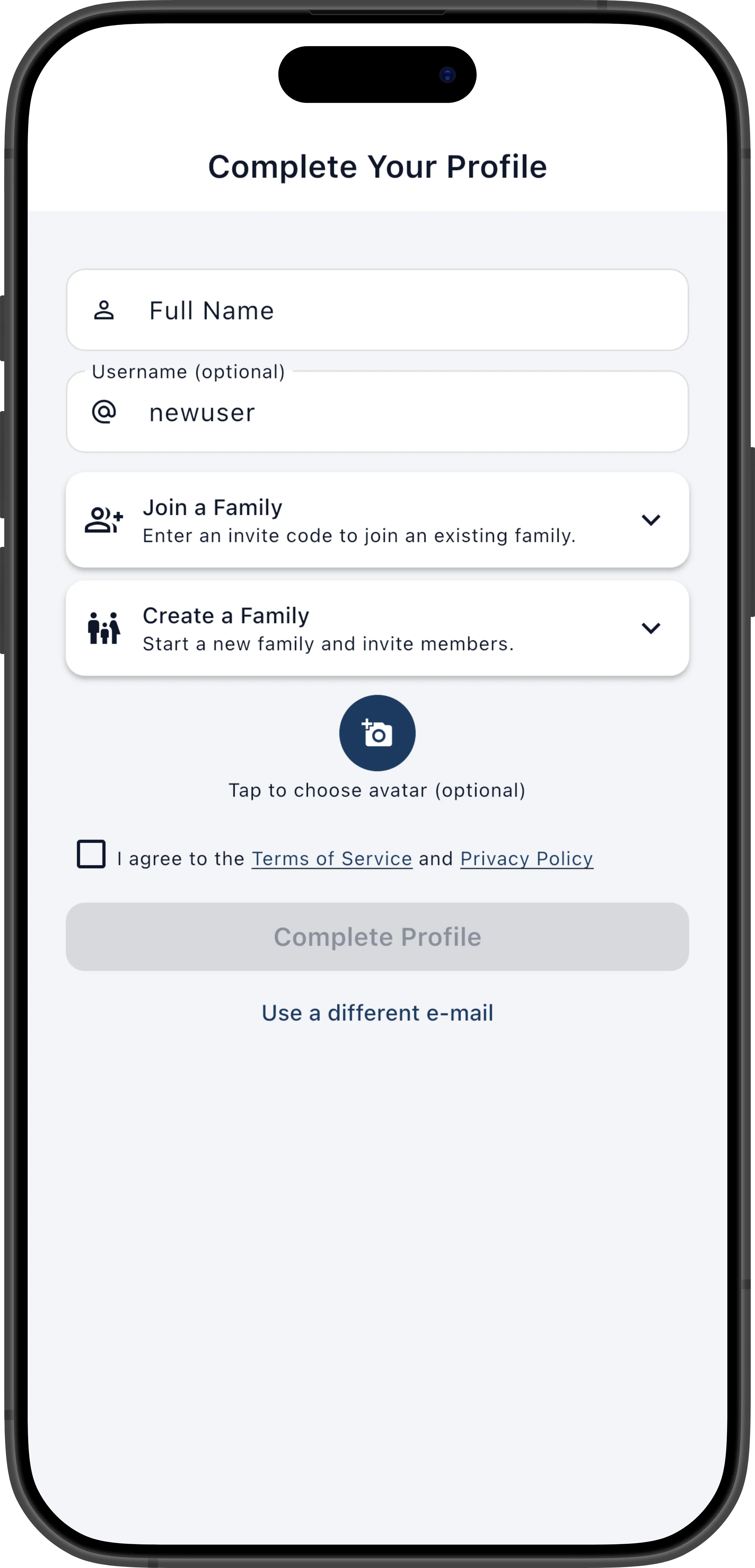
Full Name
Section titled “Full Name”Enter your full name. This is displayed to other family members.
- Required — must be at least 4 characters.
Username
Section titled “Username”Choose a unique username for your account.
- Required — must be unique across all ChorifIQ users.
- Letters, numbers, periods (
.), underscores (_), and hyphens (-) are allowed.
Avatar
Section titled “Avatar”Tap the avatar placeholder to upload a profile photo from your device’s photo library. This is optional — you can always add or change it later.
Create or Join a Family
Section titled “Create or Join a Family”At the bottom of the Complete Your Profile screen, you’ll see two collapsible cards: Join a Family and Create a Family. Tap either card to expand it and reveal its input field — only one can be open at a time.
- To join an existing family, expand the Join a Family card and enter the Family Invite Code shared by your family manager. The code is automatically formatted as you type (e.g.,
ABC-123-XYZ). See Joining a Family for details. - To create a family, expand the Create a Family card and enter your last name. ChorifIQ creates your family as “The [Name] Family” (e.g., entering “Smith” creates “The Smith Family”). See Creating a Family for what happens next.
You can leave a family and join a different one later if needed — this choice is not permanent.
Terms of Service
Section titled “Terms of Service”After age verification, you’ll be asked to accept the Terms of Service and Privacy Policy. Tap Accept to continue. Links out of the app to the full text of the two agreements are available to review.
Once you’ve filled in your details, tap Complete Profile to continue.
Next: Creating a Family or Joining a Family.