



Vacation & Scheduling Pauses
ChorifIQ lets you set vacation days at the family level or for individual members. On vacation days, the app shows a vacation banner and no new chore assignments are generated. Importantly, vacation days never break a member’s streak — they’re simply excluded from the streak calculation, as if that day didn’t exist.
Vacation settings interact gracefully with the rest of the scheduling system. When a member is on vacation, strict rotation holds their place — they aren’t skipped in the rotation, just deferred until their next active day. Goals are not calculated for vacation days, so the member’s target isn’t affected. And the scheduler simply treats vacation members as unavailable for that day, resuming their normal schedule afterward.
ChorifIQ offers three levels of vacation control, from broadest to most specific:
Family Vacation Days (Recurring)
Section titled “Family Vacation Days (Recurring)”For families that want a regular day off every week — most commonly weekends.
- Go to Manage → Settings (the Settings tab).
- Under Vacation Days of Week, select the days to skip (e.g., Saturday, Sunday).
These days repeat every week for all family members. No chores will be scheduled on these days for anyone.
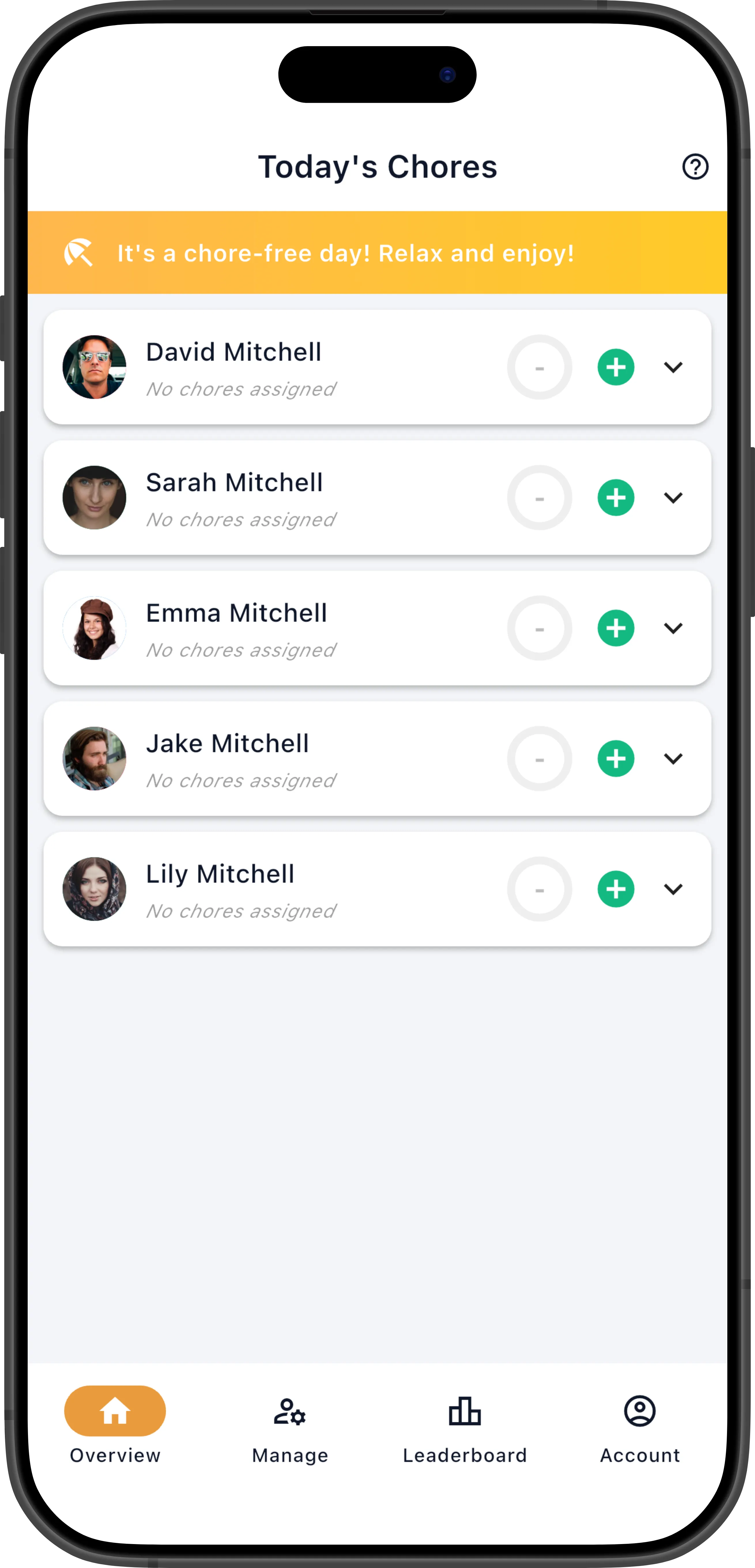
This is the most common vacation setting. Even families who want chores on weekends often designate one day (like Sunday) as a family rest day. The vacation banner is visible to every member on their dashboard — a clear signal that no chores are expected today.
Family-Wide Specific Dates
Section titled “Family-Wide Specific Dates”For holidays, family trips, or other one-off days where no one should have chores.
- Go to Manage → Settings.
- Under Vacation Dates, add the specific dates.
Add dates one at a time for individual holidays (Thanksgiving, Christmas, birthdays), or add a range for a family vacation. All members are excused on these dates — no assignments will be generated and no reminders will be sent.
Individual Member Vacation
Section titled “Individual Member Vacation”For per-member scheduling that reflects each person’s unique situation — one child has soccer practice on Tuesdays, another is visiting grandparents next week.
- Go to Manage → People and expand that member’s row.
- Open the Vacation section.
- Under Vacation Days of Week, select the recurring days off for that member.
- Under Vacation Dates, add any specific dates they’ll be unavailable. (Pro+ required)
Individual vacation settings layer on top of family-wide vacation days. If the family already has Sundays off and you give one member Saturdays off too, that member gets both days off while everyone else only gets Sunday. Other members are unaffected by another member’s individual vacation settings.
Example: Your teenager has a part-time job on Thursdays and Fridays. Set those as their individual vacation days so they’re skipped in the chore rotation on work nights. The rest of the family still gets chores on those days as usual.
Pause a Member’s Scheduling
Section titled “Pause a Member’s Scheduling”For an indefinite pause when you don’t have specific dates — a member is traveling for an unknown duration, recovering from an illness, or staying at the other parent’s house.
- Go to Manage → People and expand the member’s row.
- Open the Vacation section.
- Toggle Pause Scheduling on.
While paused, no new chore assignments are generated at all for that member — they effectively disappear from the schedule entirely. They won’t appear in rotations, won’t receive automatic assignments, and won’t be offered chores for self-assign. Existing pending assignments remain on their list but no new ones are created.
This is different from vacation days, which only exclude specific dates or days of the week while the member otherwise remains on the normal schedule. Think of vacation days as “skip these specific days” and pause as “stop everything until further notice.”
Turn it off when they return to resume normal scheduling.