



Approving New Members
When someone joins your family using an invite code, they don’t gain immediate access. Their request appears in a Pending Members list, and a manager must review and approve or reject it. This gives managers control over who enters the family — even if an invite code is accidentally shared with the wrong person, no one gets in without your explicit approval.
Where to Find Pending Requests
Section titled “Where to Find Pending Requests”Navigate to Manage → People. Pending members appear at the top of the list, clearly separated from approved members. Each pending member shows their display name, username, and avatar so you can identify who’s requesting to join.
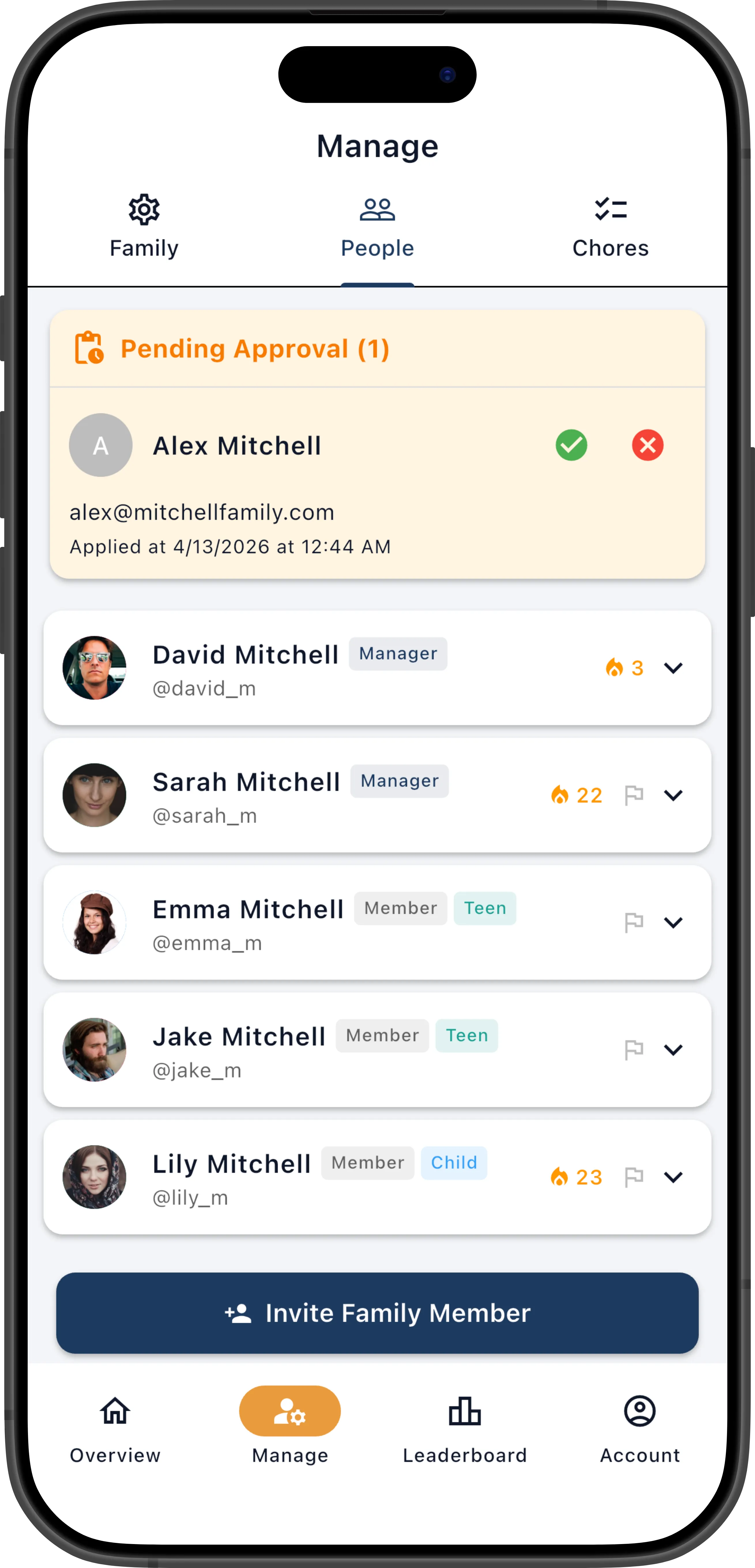
You’ll also receive a push notification when a new member applies (if you have the Family join requests notification enabled in your settings). This ensures you don’t miss a request, especially if a family member is waiting on the Pending Approval screen.
Approve a Member
Section titled “Approve a Member”- Find the pending member in Manage → People.
- Tap Approve.
The member is immediately granted access. If they’re on the Pending Approval screen, their app automatically transitions to the member dashboard. They’ll also receive a push notification that their request was approved (if they enabled notifications on the Pending Approval screen).
Once approved, the member appears in your regular member list. Their next step is to start receiving chore assignments — either through the scheduler, Quick Assign, or self-assign.
Reject a Member
Section titled “Reject a Member”- Find the pending member in Manage → People.
- Tap Reject.
- Confirm the action.
The member is removed from the pending list. Their account is not deleted — they can attempt to join again with a valid invite code, or join a different family entirely.
Notification Settings for Approvals
Section titled “Notification Settings for Approvals”To receive a push notification when someone applies to join your family, enable Family join requests in your notification settings. This is especially important if you’ve recently shared an invite code and are expecting new members. See Notifications.