



Quick Assign
Sometimes a chore needs to happen right now — the dog tracked mud inside, the recycling bin is overflowing, or you need to assign an extra chore as a consequence. Quick Assign lets you hand out chores directly from the Overview screen without navigating away from your dashboard.
How to Quick Assign
Section titled “How to Quick Assign”- On the Overview screen, find the family member you want to assign a chore to.
- Tap the green + button next to their name.
- The Quick Assign sheet opens, showing the member’s current goal progress and available chores.
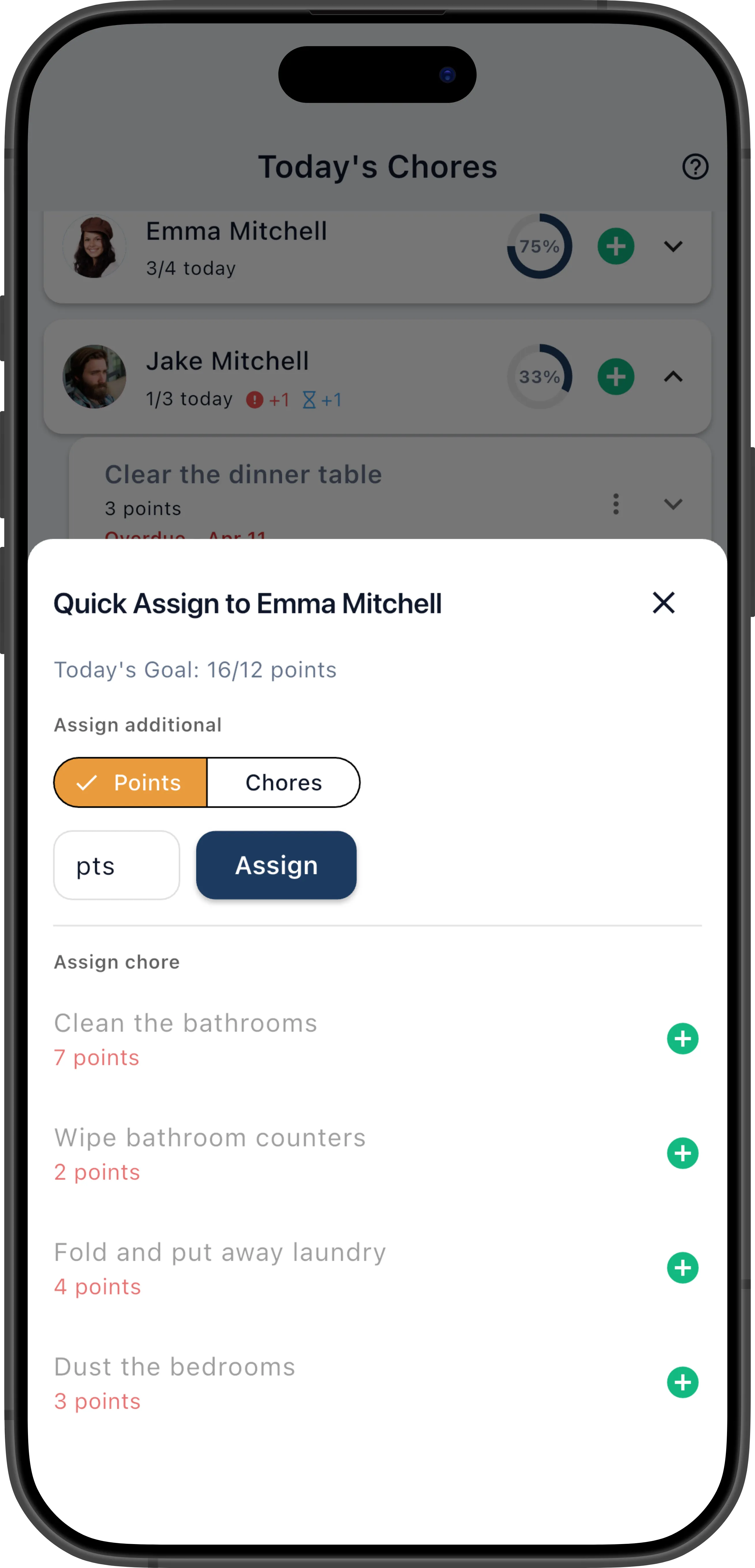
- Tap any chore in the list to assign it immediately.
The chore appears on the member’s dashboard right away — no need to visit the Chores screen or create a new definition.
Assign by Points or Chore Count
Section titled “Assign by Points or Chore Count”At the top of the Quick Assign sheet, the Assign additional section lets you assign chores by a target number instead of picking individual ones:
- Use the Points / Chores toggle to choose the mode.
- Enter a number (e.g. 10 points, or 3 chores).
- Tap Assign.
ChorifIQ automatically selects eligible chores to fill the target. In Points mode, it picks the highest-value chores first to maximize the budget. In Chores mode, it assigns by schedule priority (overdue chores first, then today’s chores).
Goal Warnings
Section titled “Goal Warnings”The chore list is goal-aware. If assigning a chore would push the member past their goal:
- The chore title appears in grey.
- The point value appears in red.
These are visual warnings only — you can still tap to assign. Managers always have the ability to override goals when the situation calls for it.
Which Chores Appear?
Section titled “Which Chores Appear?”A chore shows up in the Quick Assign list when:
- The member is in the chore’s Eligible Members list (or the list is set to everyone).
- There is no uncompleted assignment of that chore already pending (unless the chore allows multiple assignments).
Up to 8 chores are shown at a time, sorted by schedule priority. If more are available, a View All button appears at the bottom.
Example: Saturday Morning Catch-Up
Section titled “Example: Saturday Morning Catch-Up”It’s Saturday morning. You check the Overview and see that your daughter has completed everything early and has 4 points remaining in her daily goal, while your son hasn’t started. You tap the + next to your daughter’s name, set the mode to Points, enter 4, and tap Assign. ChorifIQ picks the best-fit chores from her eligible list — maybe “Wipe kitchen counters” (2 pts) and “Water the houseplants” (2 pts). She gets two more chores that exactly fill her goal, and you didn’t have to browse through the full chore list.
When to Use Quick Assign
Section titled “When to Use Quick Assign”- Unplanned tasks — Something comes up around the house that needs doing now.
- Consequences — A parent needs to assign an extra chore in response to behavior.
- Rebalancing — One member finished early and can take on more.
- Ad-hoc requests — A guest is coming over and the living room needs tidying.
- Morning setup — A manager who prefers hands-on control can use Quick Assign each morning to hand-pick chores for each member based on the day’s plans.
For creating recurring chores with schedules, use the Chores screen instead.